
Give everyone the right access, nothing more
How It Works

Add users and define roles
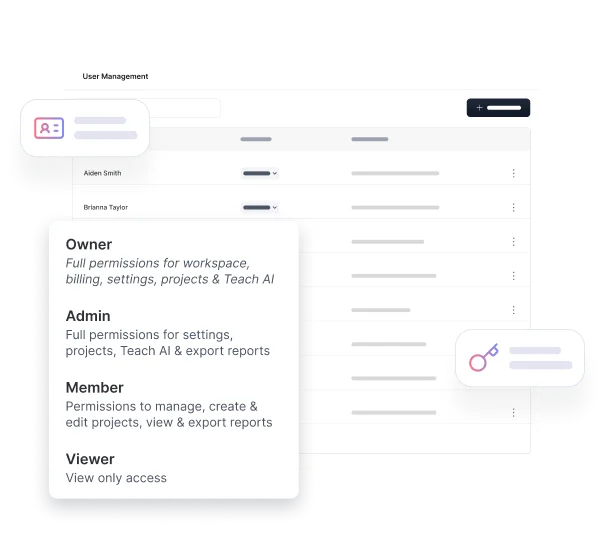
Go to Settings and open the User Management page. Click "+ Invite user," enter their email address, and select a role. They'll receive an invitation email with 7 days to accept. If the invite expires, you can re-invite them at any time.


Control access and permissions
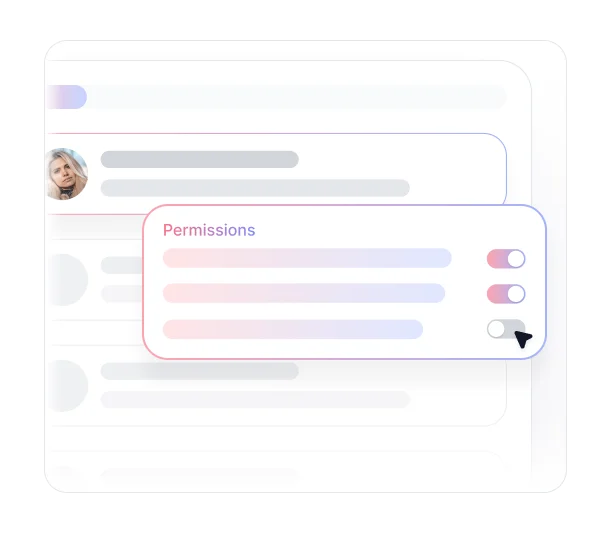
Once a team member joins, their access is determined by their assigned role. You can change roles or remove users from the User Management page at any time. Pending invitations can be revoked before a user accepts.
Key Benefits
Discover what you can do with TheySaid's roles and permissions.

Four Roles Built for Every Team Structure
Owner, Admin, Member, and Viewer cover the full range of access needs. Whether someone is managing the workspace, running projects, or just reviewing results, there's a role that fits without giving more access than necessary.

Owners Keep Full Control
The Owner role has access to every aspect of the workspace including billing, branding, integrations, API, and user management system. Only Owners can delete the workspace and assign all role types.

Admins Manage Without Overreaching
Admins have admin permissions across users, projects, branding, integrations, and API access. The one exception: billing. Admins can view plans but cannot edit them, keeping financial control with the Owner.

Members Stay Focused on Their Work
The Member role is built for people who need to create and manage their own projects without touching workspace-level settings. Members cannot manage users, integrations, branding, exports, or API access.

Viewers Get Visibility Without Edit Access
Assign the Viewer role to stakeholders who only need to see results. Viewers can view projects and insights but cannot create projects, share links, delete responses, or access workspace settings.
Set precise access controls that adapt to every user role.
See what customers say about our AI user testing platform





FAQs
TheySaid has four role based access levels: Owner, Admin, Member, and Viewer. Each role has a defined set of permissions across workspace settings, projects, responses, user management, integrations, branding, API access, and billing.
Owners have full access to every part of the workspace including billing and the ability to delete the workspace. Admins have admin permissions across most areas but cannot edit plans and billing or delete the workspace. Owners can also assign all role types, while Admins can only assign Admin, Member, and Viewer roles.
Yes. Roles can be updated at any time from the User Management page. Changes take effect immediately and adjust the team member's workspace permissions accordingly.
Invitations expire after 7 days. If a team member doesn't accept in time, you can re-invite them from the User Management page. You can also revoke a pending invitation at any time before it's accepted.
Yes. Any user can be removed at any time by clicking "Delete" next to their name in the User Management page. Not all roles have the ability to manage workspace users — see roles and permissions for details.
Viewers can view projects and insights but cannot create or edit projects, share project links, delete responses, manage users, access integrations, or view billing. It's the right role for stakeholders who need visibility without team access control over workspace settings.
Manage every team member with structured role-based access.
Control who can view, edit, and manage workspace data with flexible permissions, ensuring secure collaboration and organized access across every team member.


TheySaid User testing recommends questions, delivers via your existing channels, engages your audience,and summarizes results through AI user testing, surveys, and interviews.
.svg)


