Running a user test is the easy part. The hard part is turning hours of recordings and hundreds of answers into a clear list of what's working, what's broken, and what to fix first.
TheySaid does that work for you. Every session is recorded, transcribed, and lined up against your questions, and AI analysis turns all of it into evidence-backed findings and ranked recommendations. This guide walks through the full process with screenshots, using a real example: a test of how people shop for a home office monitor on Lenovo.com, run with five AI testers.
Haven't set up your test yet? Start with How to Set Up a User Test in TheySaid.
Step 1: Open the Evidence tab
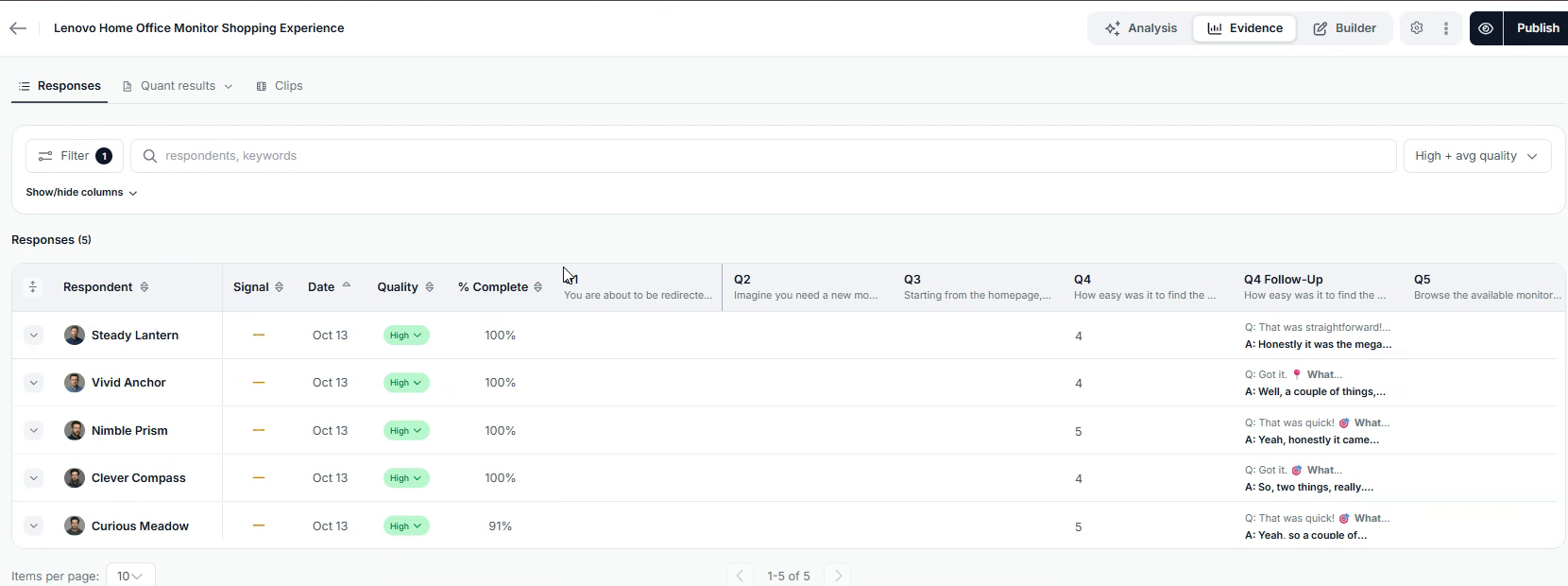
Open your project and click Evidence in the top bar. The Responses table lists every session with the respondent, date, a quality rating (like High), the percent completed, and their answer to every question. Answers to AI follow-up questions appear in their own columns, so you can scan the conversation at a glance.
By default, the table shows only High + avg quality responses. Switch the filter to All to include sessions that are still in progress or were rated low quality.
Running a test with synthetic audiences? Each AI participant gets its own name, like Steady Lantern or Curious Meadow, so you can tell sessions apart and follow one participant across every question.
Step 2: Watch session replays
Click any respondent to open their session replay. The replay window shows:
- Who the tester is, at the top (for example, "Age 38, male, remote or hybrid knowledge worker").
- An AI summary of the session on the right, like "User found Lenovo's monitor navigation and comparison tools helpful, chose the Legion 27Q, but…"
- The screen recording, with a timeline and task markers so you can jump straight to a specific task.
- A Questions tab and a Transcript tab next to the video.
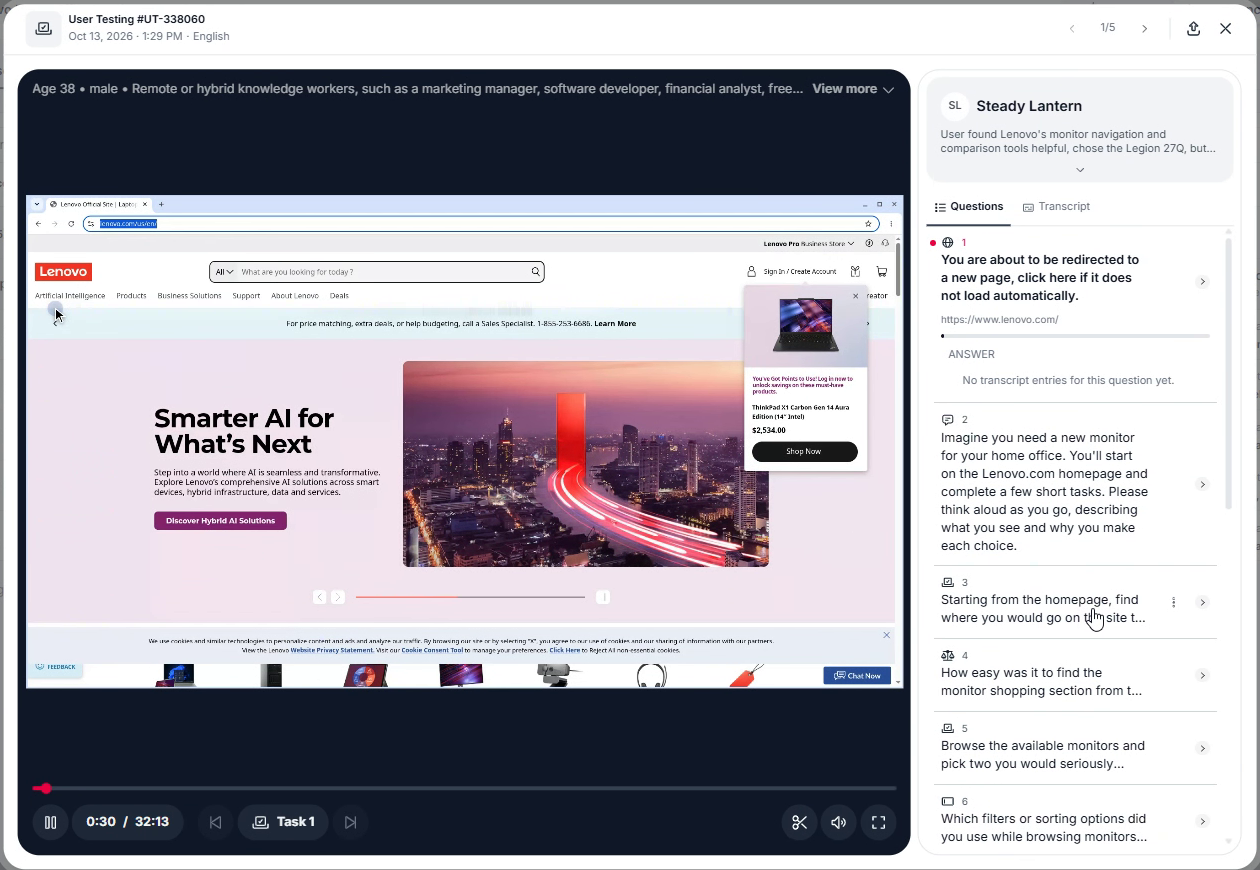
Click any question to see the tester's answer and jump to that moment in the recording. Because testers think out loud, you hear exactly why they made each choice. In this session, the tester explained that he skipped the filters entirely and used the "Shop by Size" category instead, because he already knew he wanted a 27- to 32-inch screen.
Use Sync to video to keep the answer panel in step with the recording, the arrows at the top to move to the next tester, and the clip tool to save a highlight to share with your team.
Session replays work the same way for any test, including ones you launch from Claude Design. Use the Lang menu at the top to view a session in another language, the download button to save it, and the card at the bottom to preview the next participant's summary before you move on.
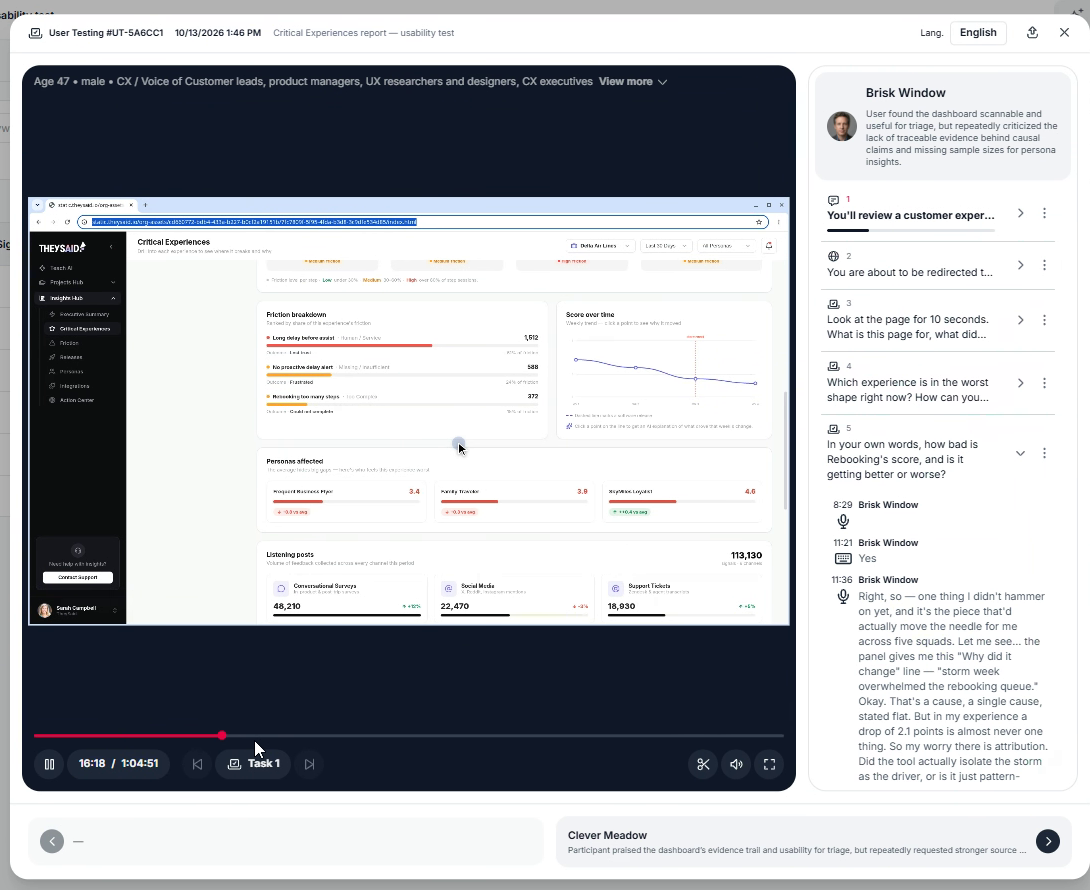
Save clips and highlights to share
Found a moment your team needs to see? Click the scissors icon under the video to clip it. Every clip you save lands in the Clips tab in Evidence, so you can collect the most telling moments from every session in one place and share them with your team. To keep a full session, use the export button at the top of the replay.
A 20-second clip of a frustrated user often makes the case faster than a full report, especially for stakeholders who won't watch an hour of recordings.
Step 3: Check the quantitative results
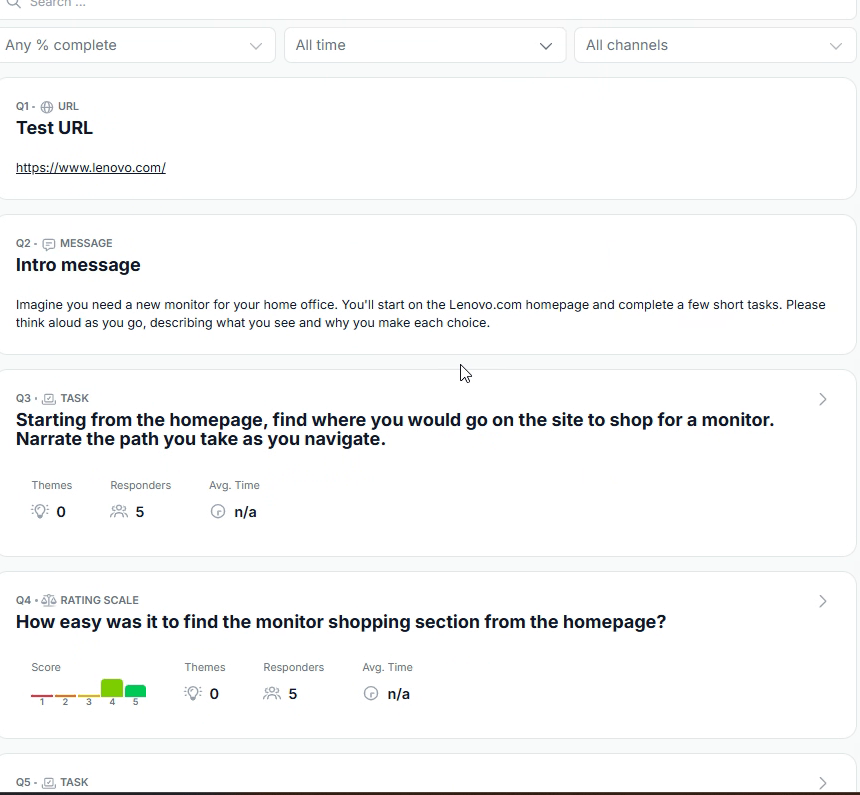
Back in the Evidence tab, click Quant results to see results question by question. You can filter by completion, date range, and channel.
Each question card shows the question type (task, rating scale, open-ended, and so on), the number of themes and responders, and the average time. Rating scales show the score distribution, and open-ended questions show the top responses.
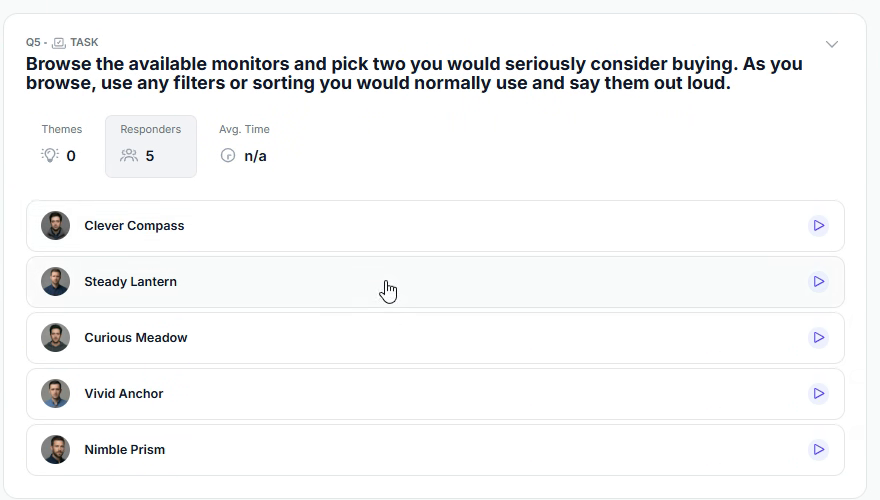
On task questions, click the play button next to any participant to jump straight to that moment in their recording.
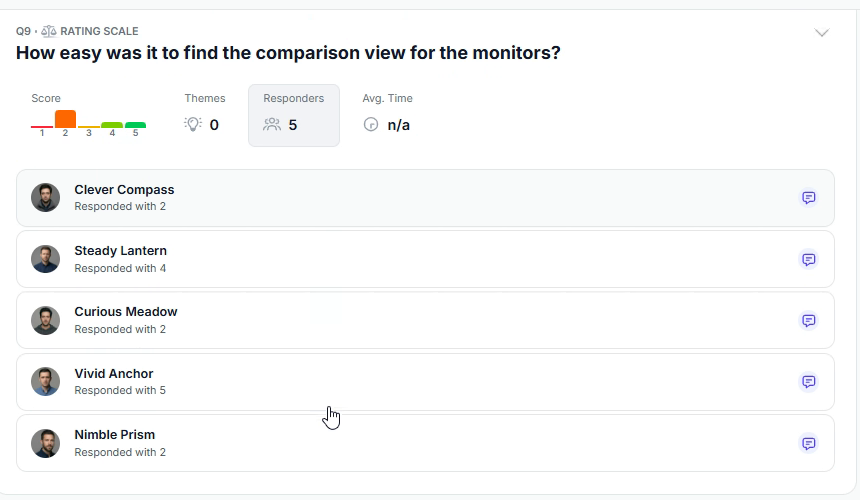
Click a card to see who answered what. Here, testers rated how easy it was to find the comparison view, and most gave it a 2 out of 5, a clear sign the feature is hard to discover.
Step 4: Check your observations, then add an analysis
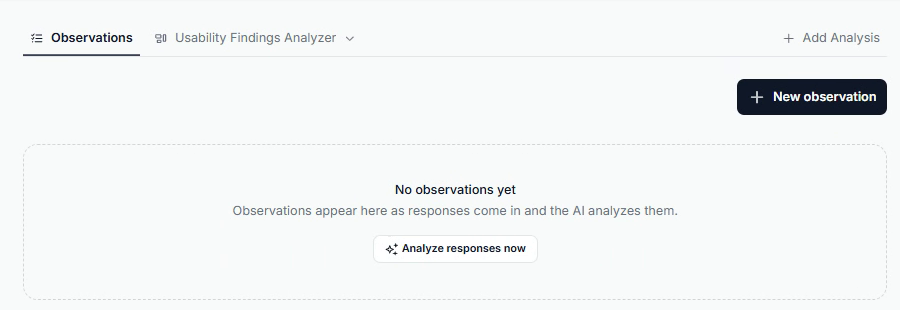
Click Analysis in the top bar. The Observations tab is where TheySaid's AI posts what it notices as responses come in. Click Analyze responses now to run it right away, or + New observation to add your own notes.
Now for the full analysis. Click + Add Analysis. You can describe what you want with the AI Companion, or pick a ready-made skill such as Executive Summary, Comparison, Action Items, Question by Question Detail, or Surprises & Contradictions.
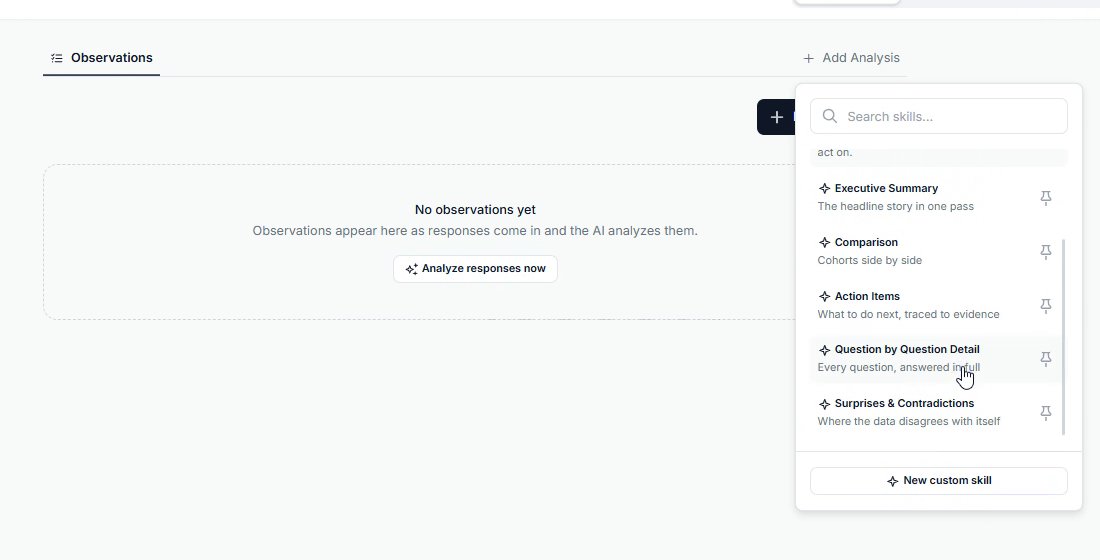
You can also write your own skill with the help of the AI Companion. Just describe what you want, and it drafts the skill for you. In this example, it built a Usability Findings Analyzer that sorts findings into Working, Broken, and Missing and ranks recommendations by impact. For the full walkthrough, see Part 4 of How to Set Up a User Test in TheySaid.
Step 5: Run the analysis and read the verdict
Your analysis opens as its own tab in the Analysis view. It takes a minute or two to generate. If you change your skill or get new responses, click the analysis name and choose Re-run. Keep in mind that re-running replaces the current version, and the old one can't be recovered.
While it runs, you'll see Generating the analysis at the top, along with each step the AI is working through. Each analysis also shows when it was last updated.
The report opens with a one-paragraph verdict and a row of score cards. In this study:
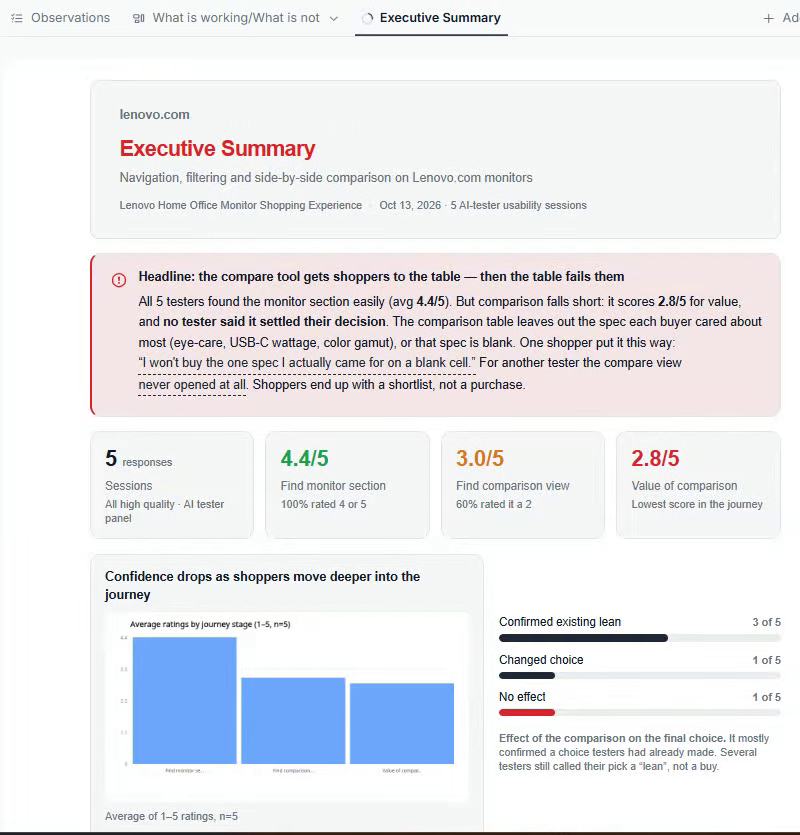
- Finding monitors worked. All 5 testers reached the monitors section easily, with an average rating of 4.4/5.
- Finding the compare tool didn't. It scored 3.0/5, and 3 of 5 testers only found it after searching.
- The comparison itself let people down. It scored just 2.8/5, and 4 of 5 testers hit a functional problem.
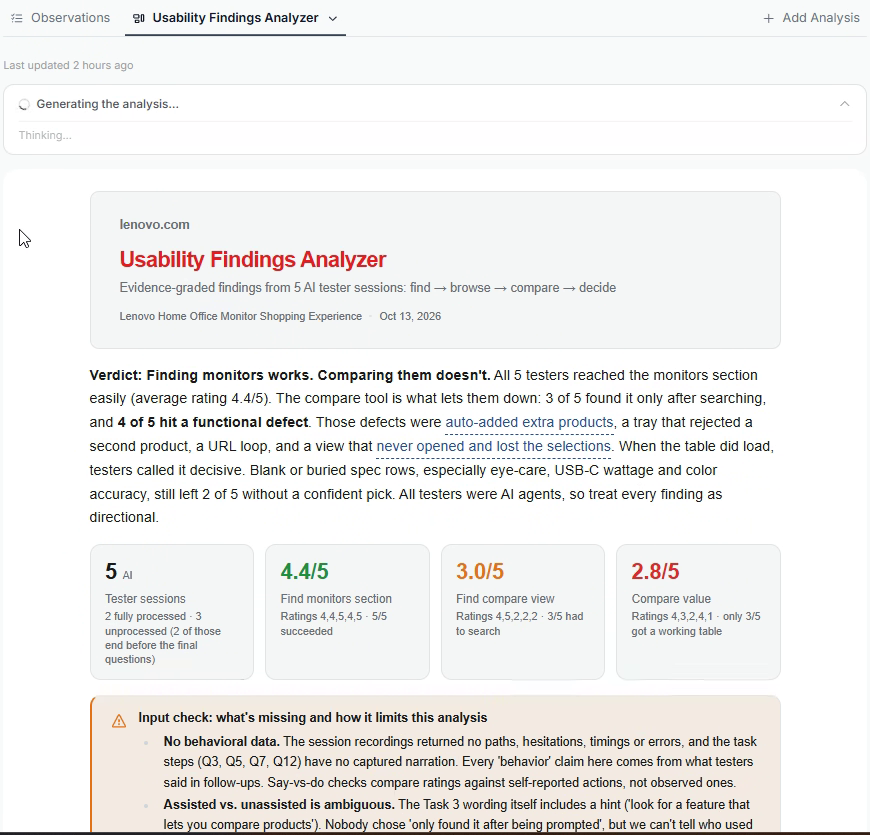
Right below the scores, an Input check spells out what the analysis can and can't see. For example, it flags when a finding is based on what testers said rather than what they did. That transparency keeps you from over-trusting a result.
Step 6: Review task performance and decision drivers
Scroll down to the Task performance table. It shows, for each task, the success rate, how many testers succeeded without help, and the key points of friction. Here, every tester found the monitor section, but only 2 of 5 used filters or sorting while browsing.
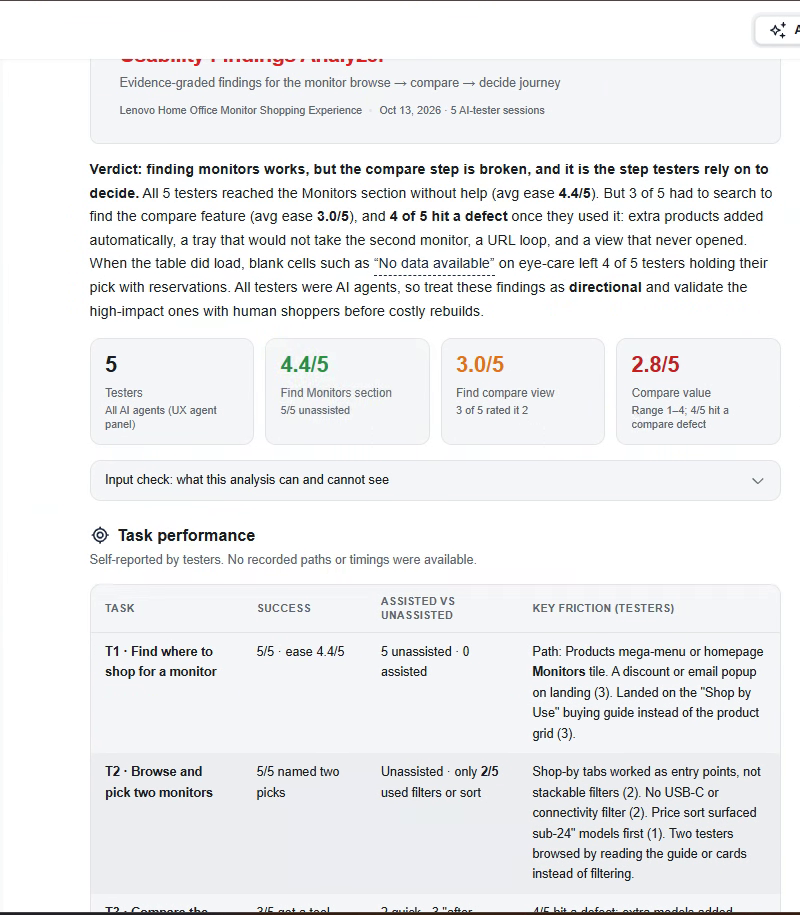
Task performance shows success rates and exactly where testers struggled
Next is a say vs. do check, which compares what testers claimed with what they actually reported doing. One tester rated the compare feature 4 out of 5, then described getting stuck in a loop and missing key specs. That kind of mismatch is easy to miss when you read answers one at a time.
The Decision drivers table lists what mattered most to testers when choosing a monitor (eye comfort, USB-C ports, screen size, panel type, price) and whether the product pages actually showed that information.
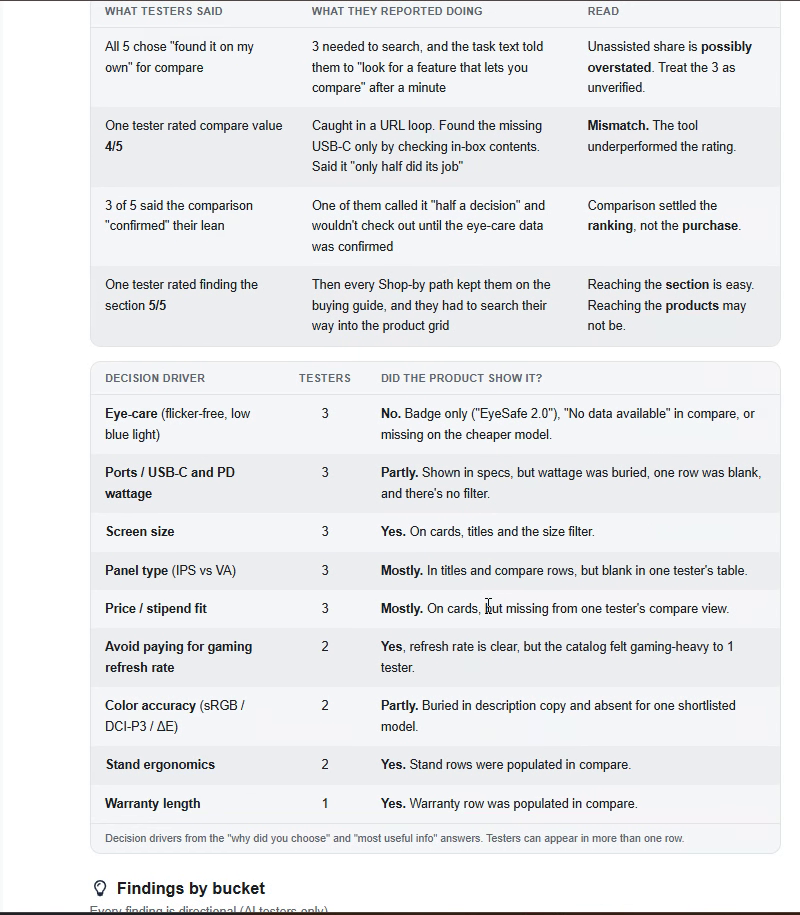
Step 7: Dig into findings by bucket
The Findings by bucket section groups every finding into Working, Broken, and Missing. Each finding is tagged by the strength of its evidence (Strong or Moderate) and backed by direct quotes from testers.
For example, the top Broken finding was that the compare flow fails after you select products: extra models get added automatically, a tray rejects the second product, and the comparison view sometimes never opens. One tester put it simply: "I did the work, I queued them correctly, and the one action that pays it off never fired."
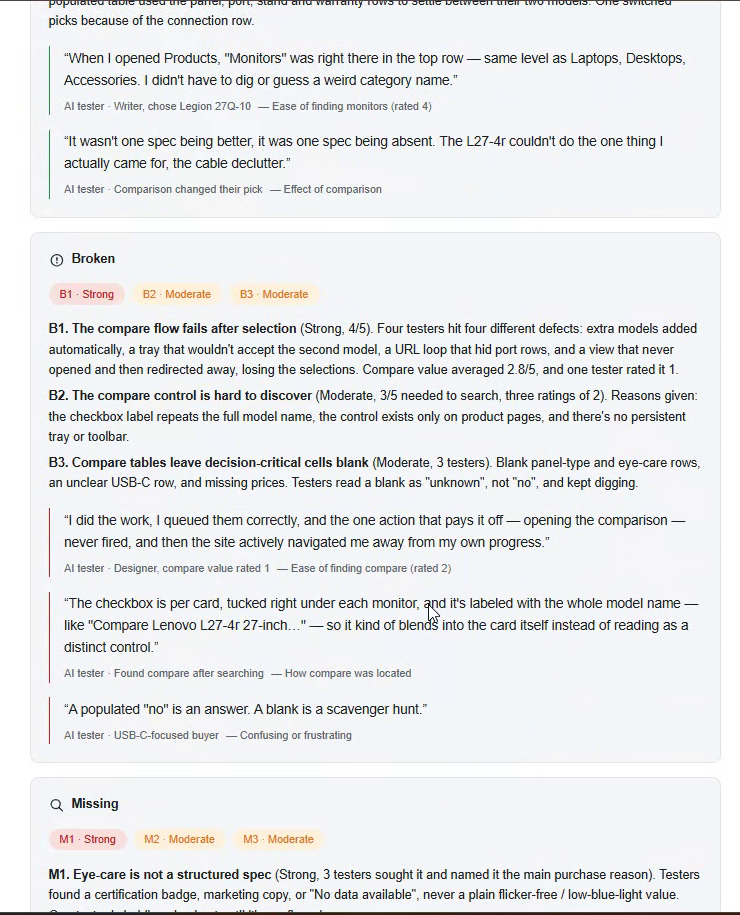
Findings are grouped into Working, Broken, and Missing, with tester quotes as evidence
Step 8: Act on the recommendations
The report ends with What to do next, and why: a ranked list of fixes, each tied to the evidence behind it. In this study, the top recommendations were:
- Fix the compare tool's reliability first: it must open, keep your selections, and include only the products you chose.
- Fill in every cell of the comparison table, and add rows for eye care, USB-C wattage, and color accuracy.
- Make the compare option easier to spot, with a short "Compare" label and a sticky tray.
- Add filters for what shoppers actually care about, like USB-C ports, resolution, and price.
- Keep the current "Monitors" navigation as is, since it was the strongest part of the journey.
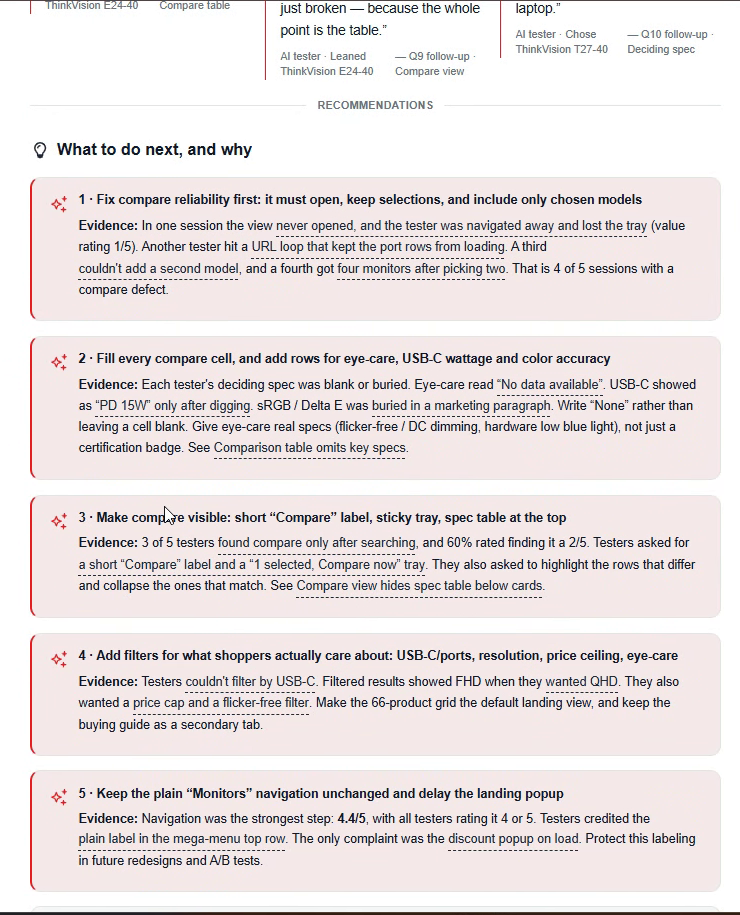
Step 9: Share an executive summary
Need a version for leadership? Add an Executive Summary analysis. It leads with a one-line headline ("The compare tool gets shoppers to the table, then the table fails them"), followed by the key scores, a chart showing where confidence dropped across the journey, and what you learned against each of your learning goals.
Each analysis gets its own tab, so you can keep a detailed report for your product team and a short summary for stakeholders in the same project.
Bonus: Get your results inside Claude Design
If you launched your test from Claude Design, you can pull the results right back into your design workspace and go straight from findings to fixes.
- Ask for the results. In the Claude Design chat, type "Can you show me the results of my user test?" If the test is still running, Claude tells you how far along the testers are and roughly how long is left.
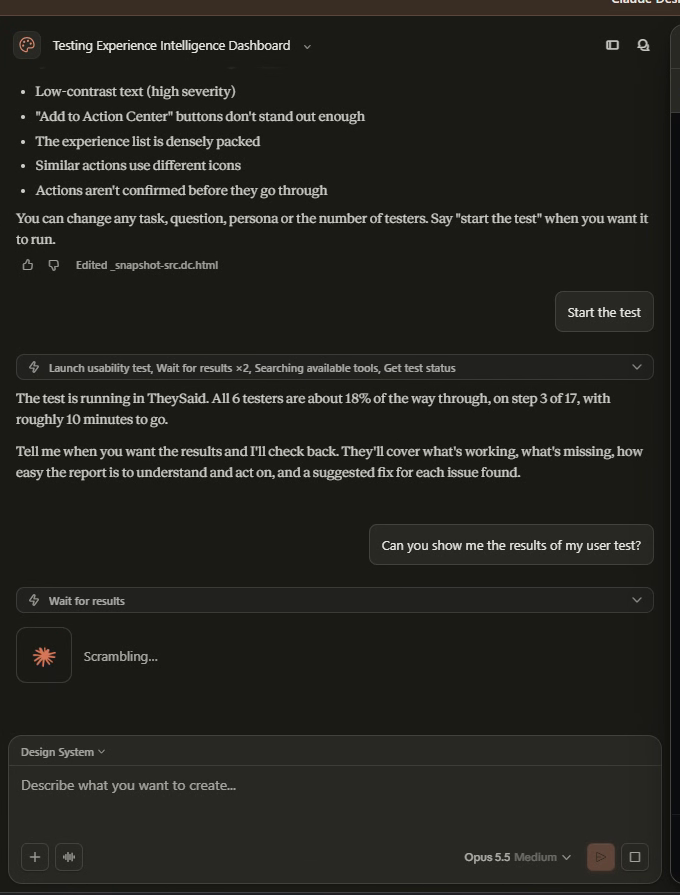
Ask Claude for your test results without leaving your design
- Review the issues. Once testers finish, Claude summarizes what they found. In this example, it listed 10 issues, each with a severity rating (High, Medium, or Low), a short explanation, a recommended fix you can paste into your coding agent, and a link to view the tester's session.
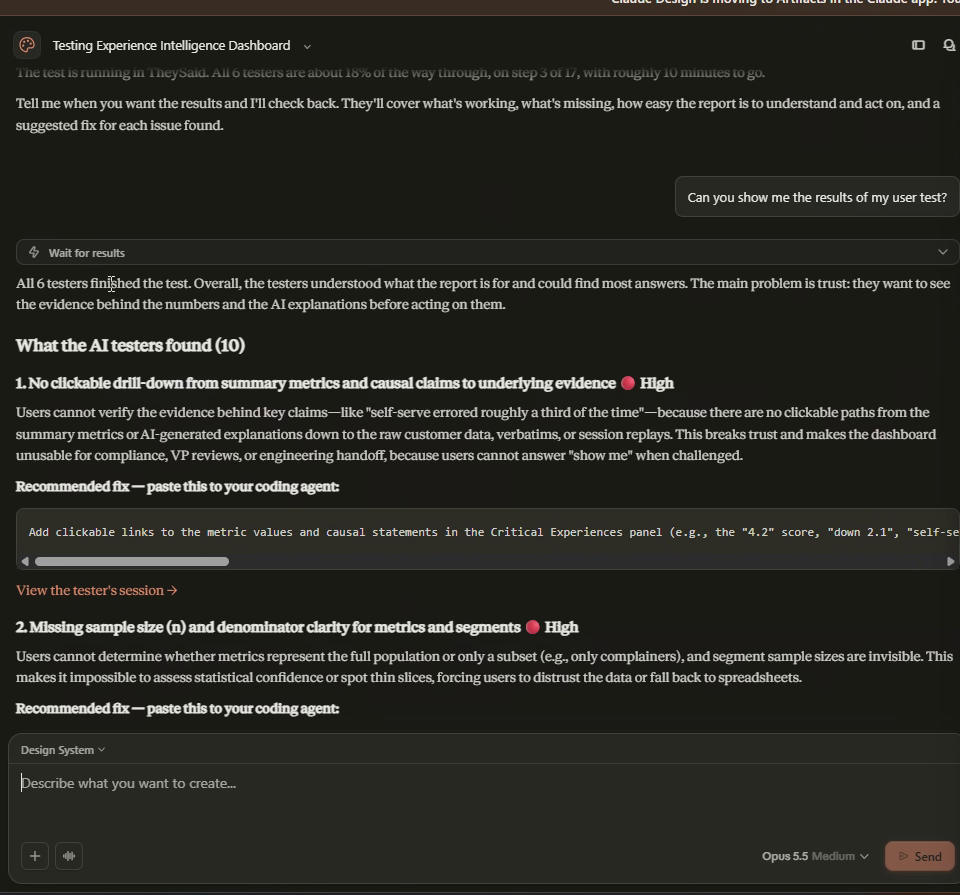
Claude lists every issue with its severity and a ready-to-use fix
- Decide what to fix. Claude ends with its read on which issues to fix in the design now, which to check first, and which are out of scope. It can then update the design for you and rerun the same test, so you can see if your changes worked.
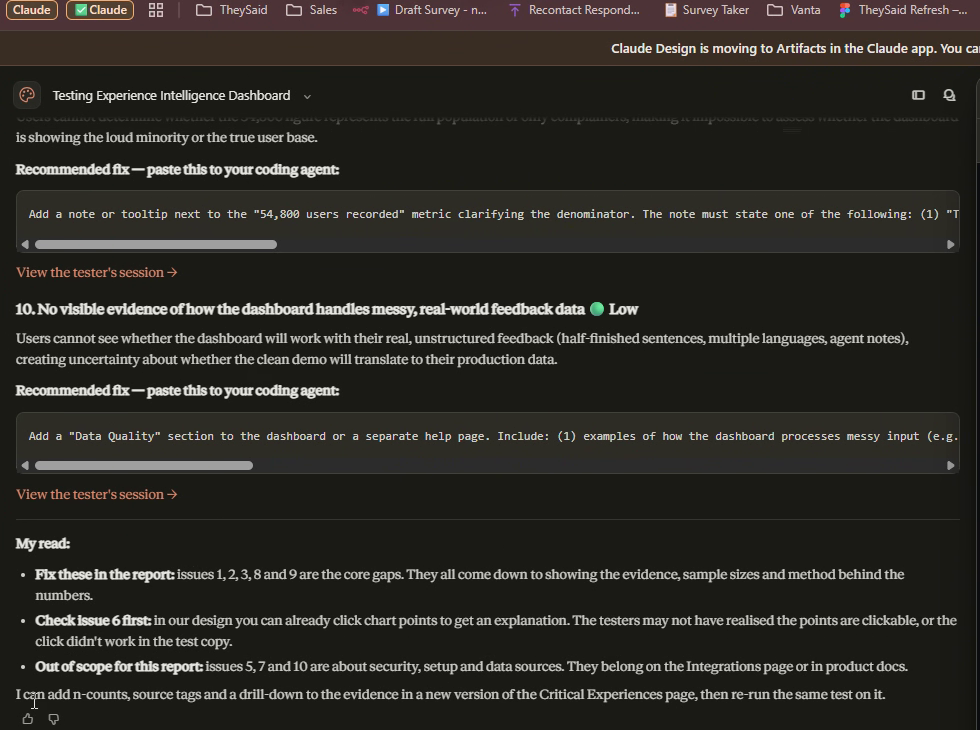
Need more help? Watch the video below to see the whole process in action, from reviewing session replays and quant results to turning every session into clear findings with AI analysis. https://app.clickup.com/9006006330/v/cn/6-901106381524-8/t/80110062624405
With TheySaid, you don’t have to rewatch every session or tag every quote by hand. Watch the moments that matter, clip and share them with your team, and let AI turn every session into clear findings and next steps you can act on.
And with TheySaid 4.0, you can do it all right where you build. Launch tests from tools like Claude Design, run them with real users or synthetic audiences, and write your own analysis Skills with the AI Companion, plus so much more.
Ready to see how users will react? Get started free and run your first user test with TheySaid today.
Frequently Asked Questions
How do I see the results of my user test in TheySaid?
Open your project and click the Evidence tab. You'll see every session with its quality rating, completion rate, and answers. From there, watch session replays, check Quant results, or open the Analysis tab for AI-generated findings.
Can I watch a recording of each session?
Yes. Click any participant to open their session replay. You'll see their screen recording, an AI summary of the session, and every answer synced to the moment they gave it.
Can I share key moments with my team?
Yes. Use the clip tool in any session replay to save a short highlight. Your clips are collected in the Clips tab, so you can share the moments that matter without asking anyone to watch full recordings.
How does TheySaid's AI analysis work?
Click + Add Analysis in the Analysis tab and choose a skill, like Executive Summary or Action Items, or describe what you want to the AI Companion. TheySaid reads every session and turns it into findings, scores, and ranked recommendations, each backed by quotes from participants.
Can I create my own analysis?
Yes. You can write your own skill with the help of the AI Companion. Describe what you want, and it drafts the skill for you. Once it's saved, you can reuse it on any project.
What happens if I re-run an analysis?
Re-running creates a fresh version based on your latest responses. It replaces the current version, and the old one can't be recovered.
Can I get my results inside Claude Design?
Yes. If you launched your test from Claude Design, ask Claude, "Can you show me the results of my user test?" It lists every issue with a severity rating, a recommended fix, and a link to the participant's session.
Are findings from synthetic audiences reliable?
They're a fast way to spot problems early, but they're directional. Validate high-impact findings with real users before making costly changes. You can send the same test to real participants with one link.