Want to try out the new features in TheySaid 4.0 and run your first test? This guide shows you how.
In under two minutes, you’ll go from a plain-English idea to a live, AI-moderated user test. You describe what you want to learn; TheySaid writes the tasks and questions, and you send the test to real participants, synthetic audiences, or both.
We’ll walk through every step with screenshots, using a real example: a test of how people shop for a home office monitor on Lenovo.com.
Part 1: Create the project
TheySaid's AI does most of the heavy lifting here. You describe the test, approve the learning goals, and the platform writes the full question set for you.
Step 1: Start a new project
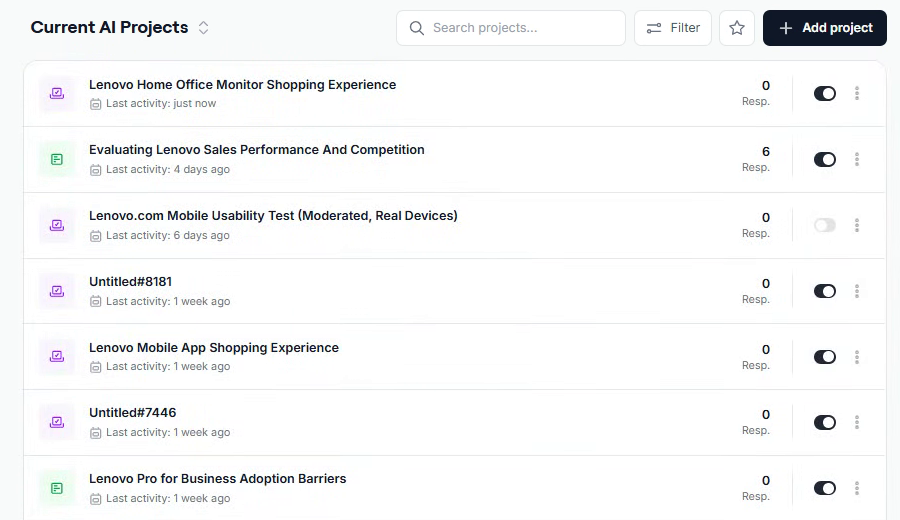
Go to Projects in the left sidebar and click + Add project in the top-right corner. You'll see all your existing projects listed here, with response counts and an on/off toggle for each.
Step 2: Set the language, device, and build method
The Create a new project screen asks three quick questions:
- Choose project language. Pick the language your participants will use. TheySaid supports more than 70 languages, so you can test with users around the world in their own language.
- Choose device type. Select Both (computer and phone), Computer only, or Phone only.
- Choose how to create your project. Select Generate with AI to have TheySaid write the questions for you, or Start from scratch to build them yourself.
This guide follows the Generate with AI path.
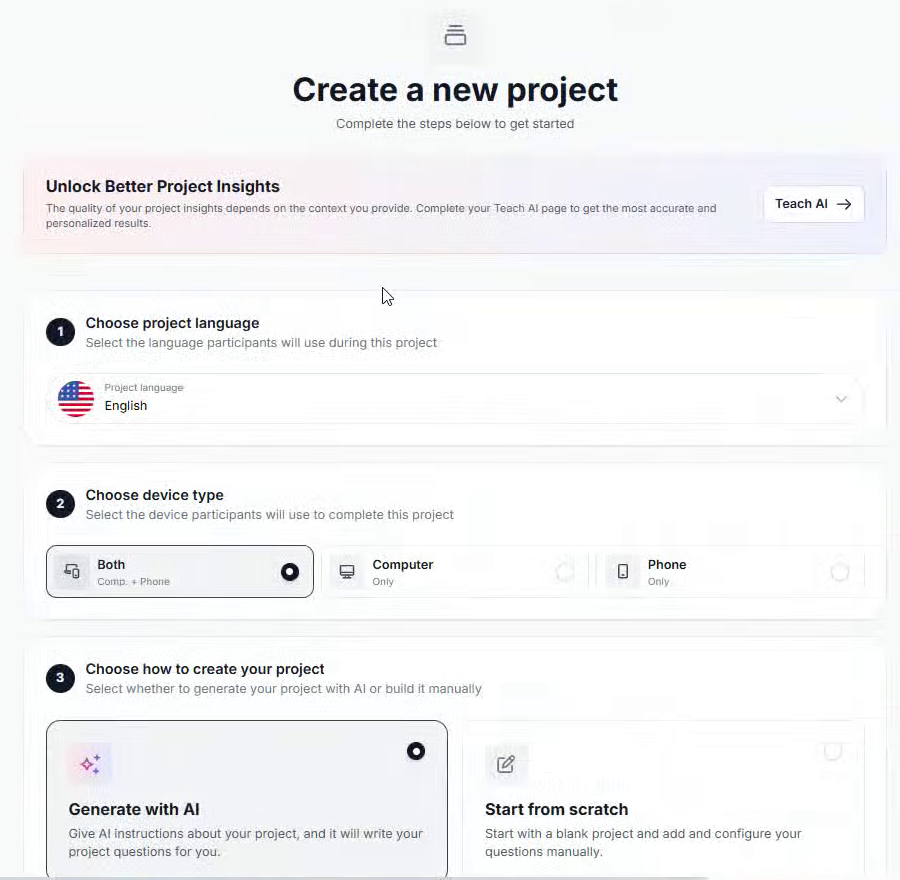
Pro tip: The banner at the top suggests filling out your Teach AI page first. The more context TheySaid has about your product, the sharper your questions and insights will be.
Step 3: Tell the AI what you want to test
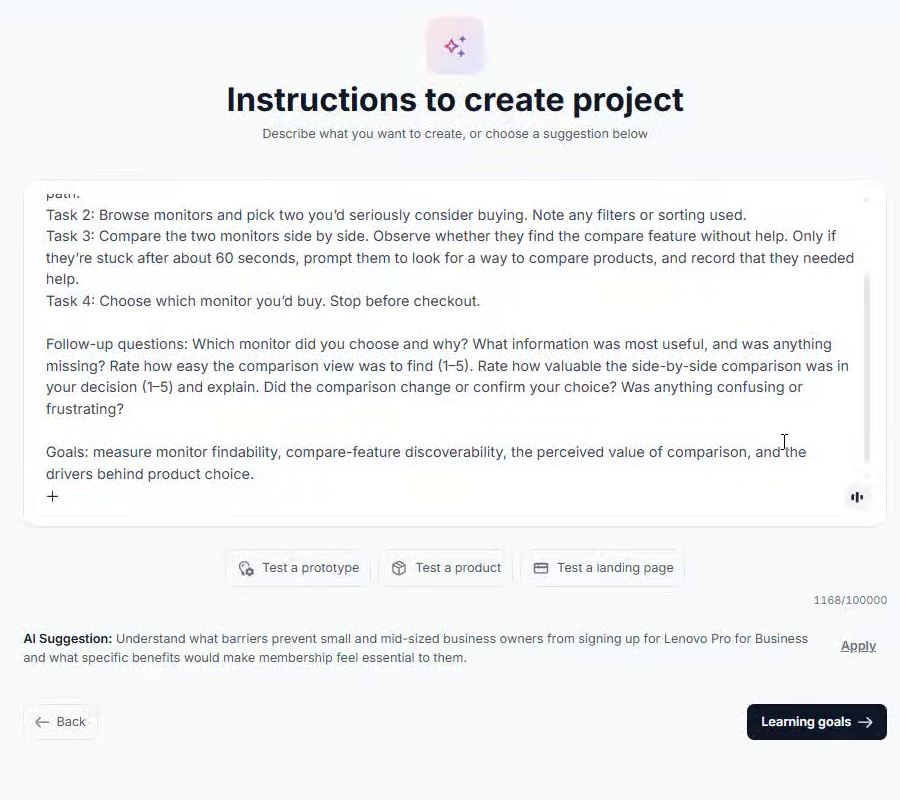
On the Instructions to create project screen, describe your test in the text box. You can also paste in existing instructions, or click a quick-start option: Test a prototype, Test a product, or Test a landing page.
The more specific you are, the better the output. A strong prompt includes:
- The scenario. For example: "Imagine you need a new monitor for your home office. Start on the Lenovo.com homepage."
- The tasks, in order. For example: browse monitors and pick two you'd seriously consider, compare them side by side, then choose one and stop before checkout.
- Hints for when testers get stuck. For example: "If they're stuck after about 60 seconds, prompt them to look for a way to compare products."
- Follow-up questions, including any rating scales (for example, "Rate how easy the comparison view was to find, 1 to 5").
- Your goals. For example: measure how easy monitors are to find, whether people discover the compare feature, and what drives their final choice.
When you're done, click Learning goals.
Step 4: Review your learning goals
TheySaid turns your instructions into up to three learning goals. In this example:
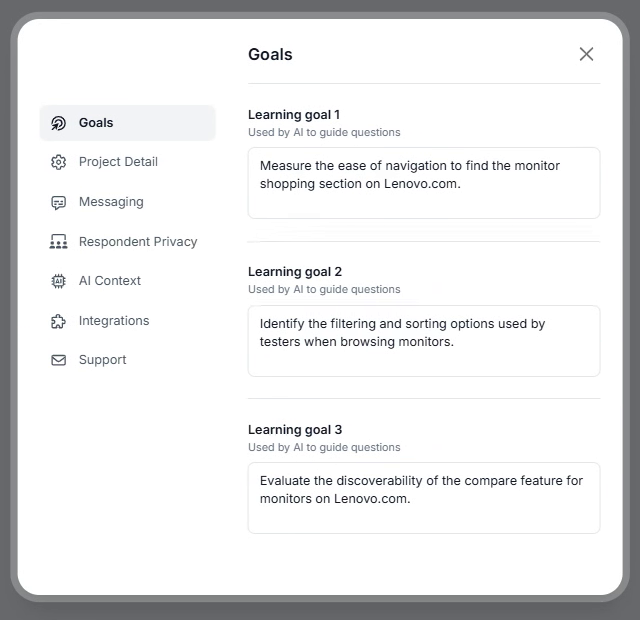
- Objective 1: Measure how easy it is to find the monitor shopping section on Lenovo.com.
- Objective 2: Identify the filtering and sorting options testers use when browsing monitors.
- Objective 3: Evaluate how discoverable the compare feature is for monitors on Lenovo.com.
Edit any goal, drag to reorder, or delete one you don't need. When they look right, click Create Project.
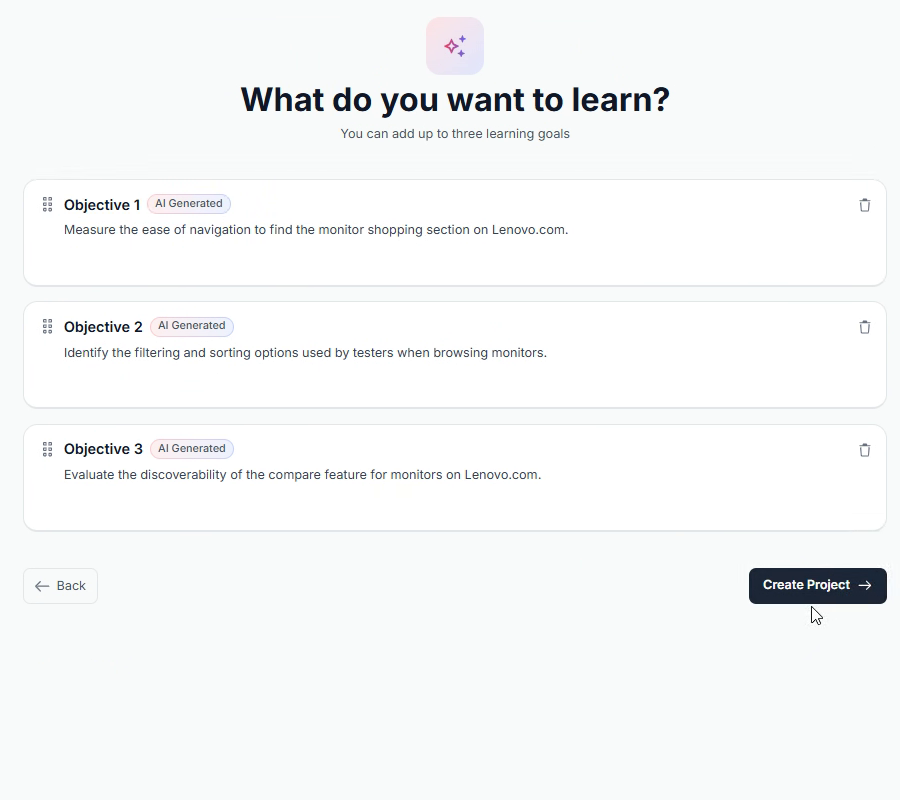
TheySaid suggests up to three learning goals based on your instructions
Step 5: Let the AI write your questions
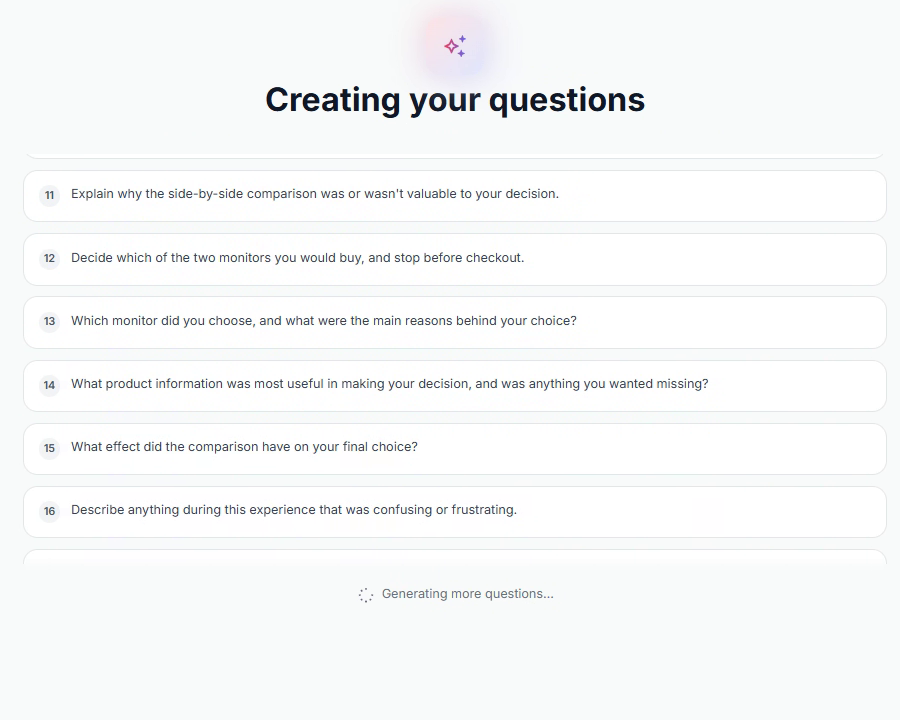
TheySaid now builds the full test, choosing the right question type for each item: welcome and redirect messages, tasks, rating scales, multiple-choice questions, and open-ended follow-ups. In this example, it wrote 16 items in under a minute, then opened the project in the Builder automatically.
Part 2: Fine-tune it in the Builder
The Builder is where you review what the AI wrote and polish the participant experience before anyone sees it. Changes save automatically.
Step 6: Review the welcome screen and questions
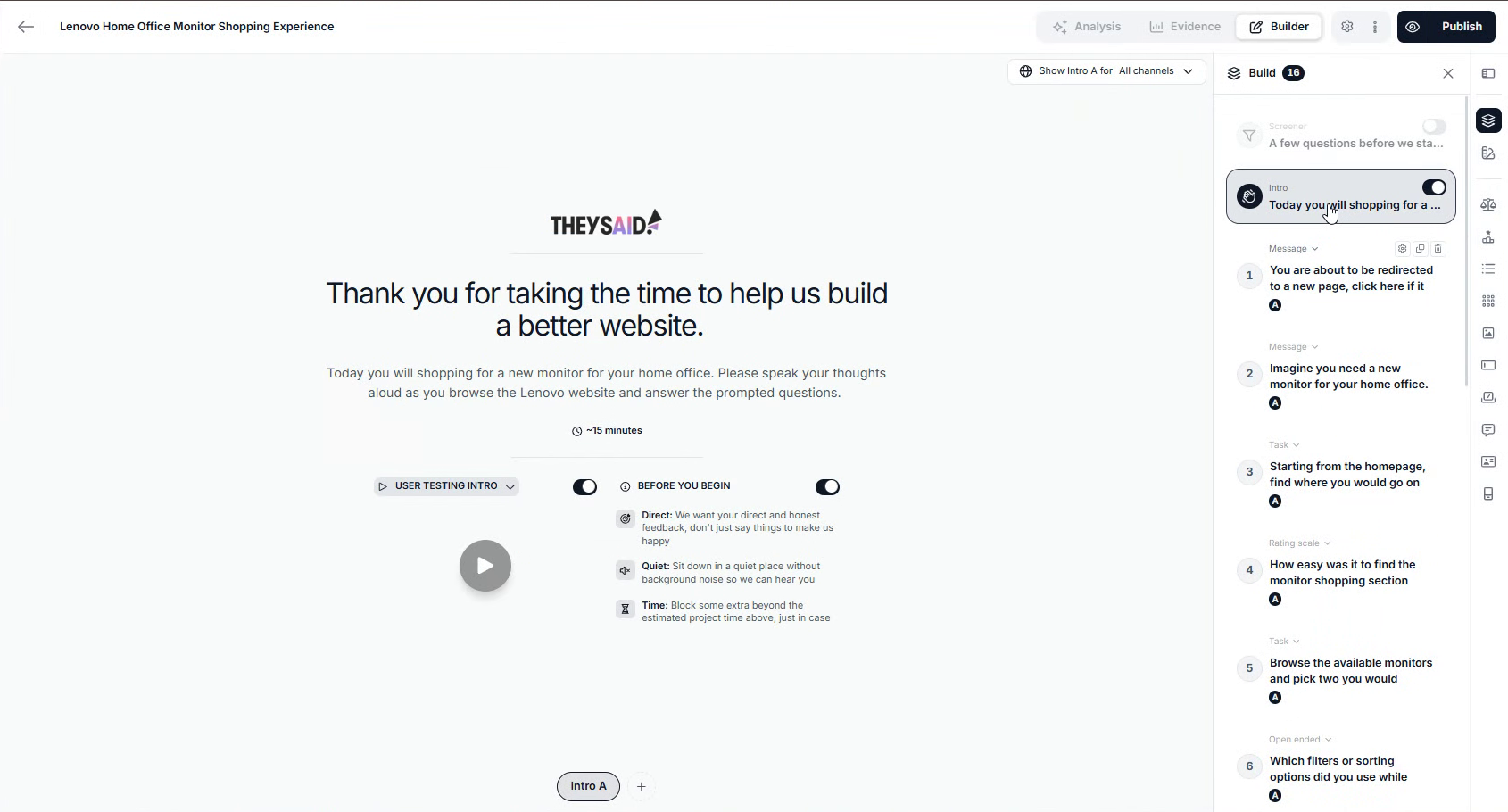
The Builder has two main areas:
- The preview (center) shows exactly what participants will see. Use the Preview / Logic toggle at the top to switch between how the test looks and how questions branch.
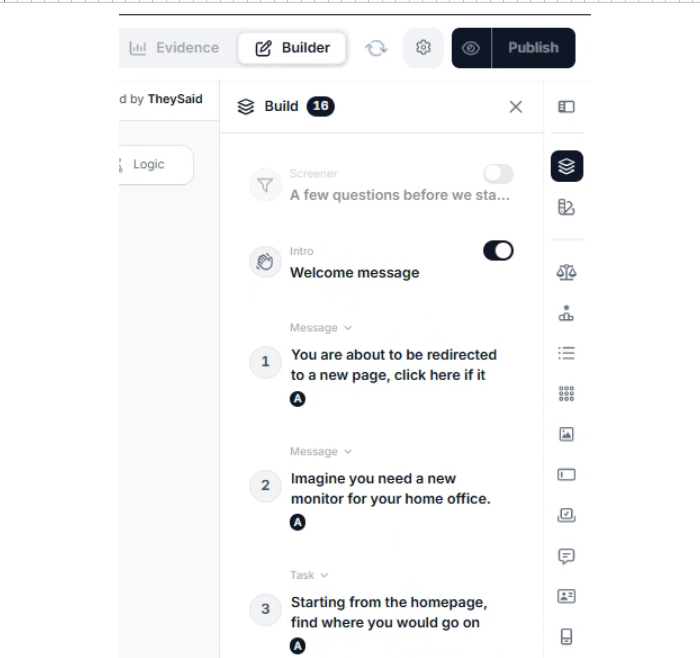
- The Build panel (right) lists every item in order, labeled by type. Click any item to edit it, or drag it to reorder.
At the top of the Build panel, you'll find a Screener block. Turn it on to ask a few qualifying questions before the test starts, so only the right people take part. At the bottom, the Outro holds your closing message, like Thank you for taking this test!
The welcome screen includes a short intro, an estimated completion time (about 15 minutes here), and a Before you begin checklist that asks participants to be direct, find a quiet spot, and set aside enough time. Each block has its own on/off toggle. You can also click + next to Intro A to create a different intro version.
To polish any question, select it and click Improve to have AI rewrite it, or click Options to change its settings.
Step 7: Pick an intro video
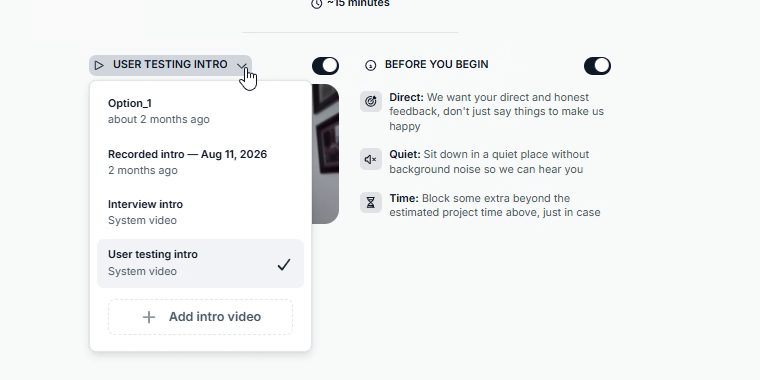
On the welcome screen, open the intro video dropdown to choose what participants watch first. You can use a built-in video (User testing intro or Interview intro), one you've recorded before, or click + Add intro video to upload a new one.
Step 8: Set your quick settings
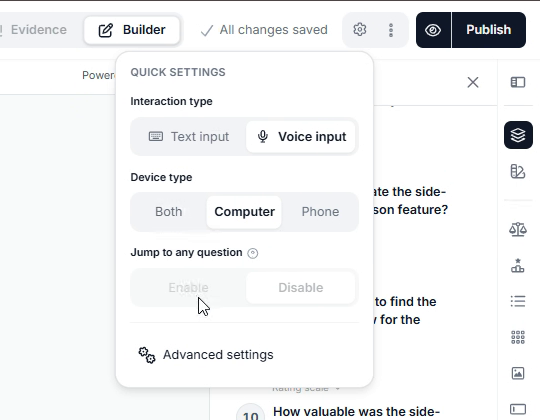
Click the gear icon next to Publish to open Quick settings:
- Interaction type: Text input or Voice input. Voice input lets participants think out loud, which works best for user testing.
- Device type: Both, Computer, or Phone.
- Jump to any question: Enable or Disable. Disable it to keep participants moving through tasks in order.
Step 9: Check the advanced settings
Click Advanced settings at the bottom of the Quick settings menu. The Goals tab shows the learning goals the AI moderator uses to guide its follow-up questions, and you can edit them anytime. Other tabs cover Project Detail, Messaging, Respondent Privacy, AI Context, Integrations, and Support.
Part 3: Publish and recruit your audience
Once you publish, you can share the test yourself, recruit real participants through TheySaid, run it with a synthetic audience, or combine all three.
Step 10: Publish and share your test
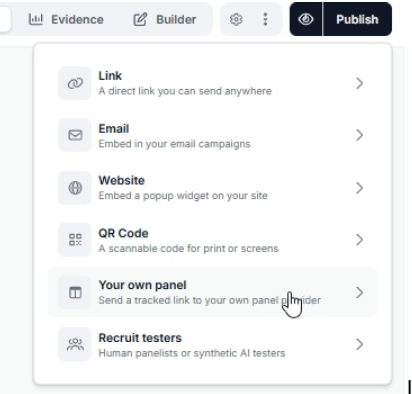
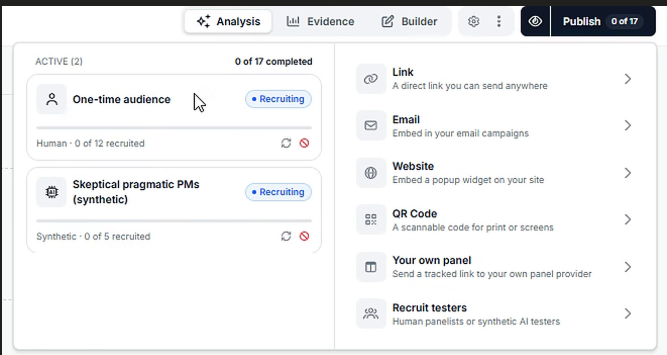
Click Publish in the top-right corner. A menu opens with six ways to get your test in front of people:
- Link: A direct link you can send anywhere. Click Copy to grab it.
- Email: Embed the test in your email campaigns.
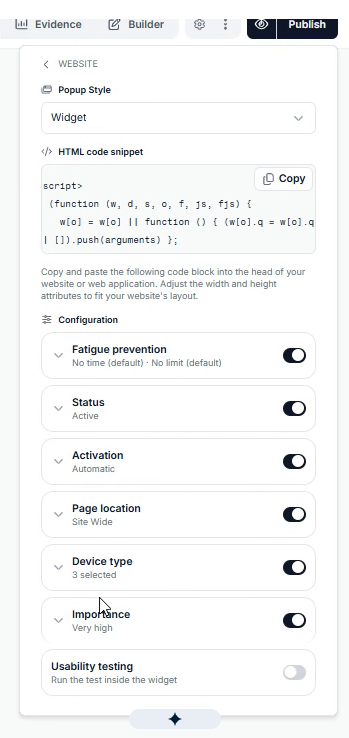
- Website: Add a popup widget to your site.
- QR Code: A scannable code for print or screens.
- Your own panel: Send a tracked link to your own panel provider.
- Recruit testers: Recruit human panelists or synthetic AI testers through TheySaid.
If you choose Website, pick a popup style, copy the HTML snippet into your site, and set options like fatigue prevention, activation, page location, device type, and importance.
Step 11: Pick or create an audience
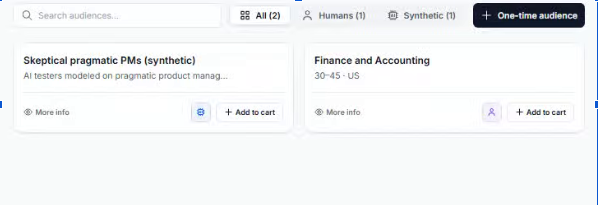
Click Recruit testers. You'll see your saved audiences, which you can filter by Humans or Synthetic. Add one to your cart with Add to cart, or click One-time audience to build a new one for this test.
Step 12: Build a human audience
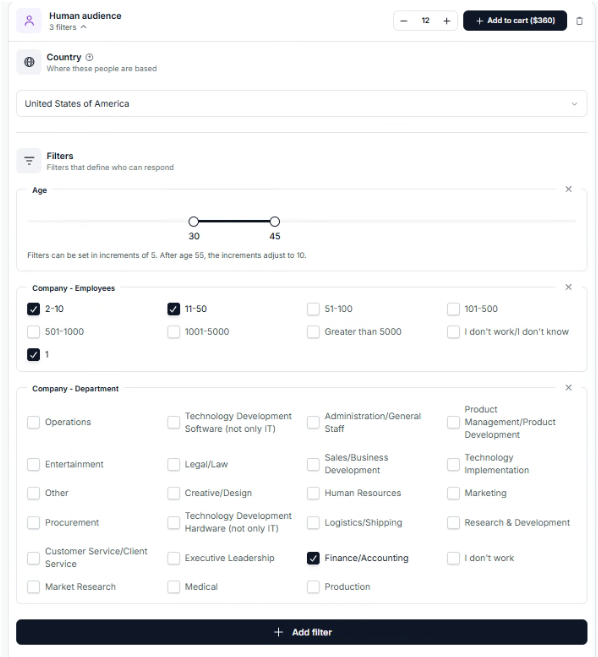
Under Human audience, set how many participants you need, then define who they are:
- Country: Choose where participants are based.
- Filters: Narrow by age, company size, department, and more. Click Add filter to add others.
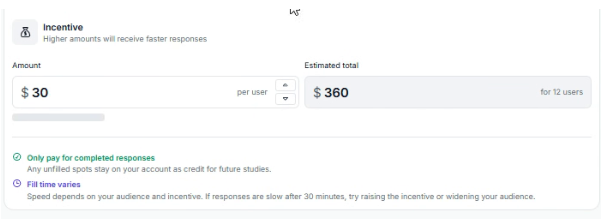
- Incentive: Set how much each participant earns. TheySaid suggests a range ($30 to $45 here) and shows the estimated total. Higher incentives fill faster.
You only pay for completed responses. Any unfilled spots stay on your account as credit for future studies.
Step 13: Add a synthetic audience
Click Add synthetic testers, set how many you need, and describe their Mindset: their goals and motivation, their worldview and belief system, and their knowledge base and domain familiarity.
Under Filters, fine-tune their personality traits (like patience, attention to detail, risk tolerance, and trust in technology), demographics, and job details. If the site you're testing uses CAPTCHA, check Bot detection bypass so AI testers can get past it. Sessions run a bit slower with it on.
Synthetic testers cost a flat $2 each, with no recruiting wait. They start as soon as the study is published and run in parallel.
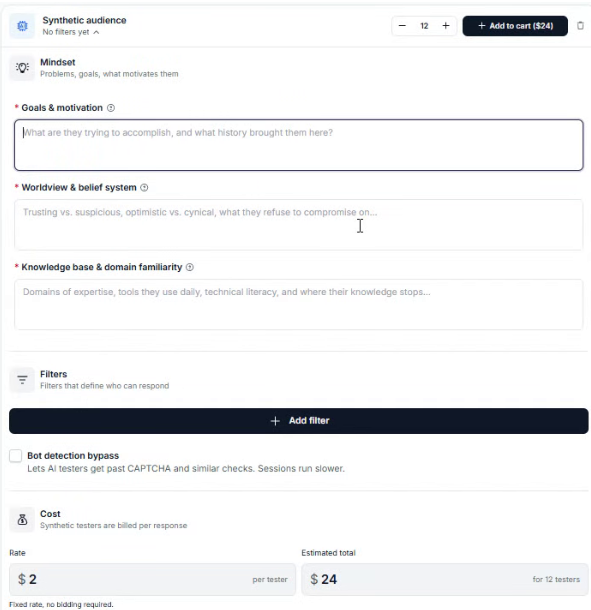
Pro tip: Not sure who to recruit? The AI Companion opens alongside the audience builder. Ask "Who should I recruit?" and it reads your study goals, recommends an audience, and asks whether you want real people, synthetic testers, or both. Then it fills in every field for you. Click Create audience to save it.
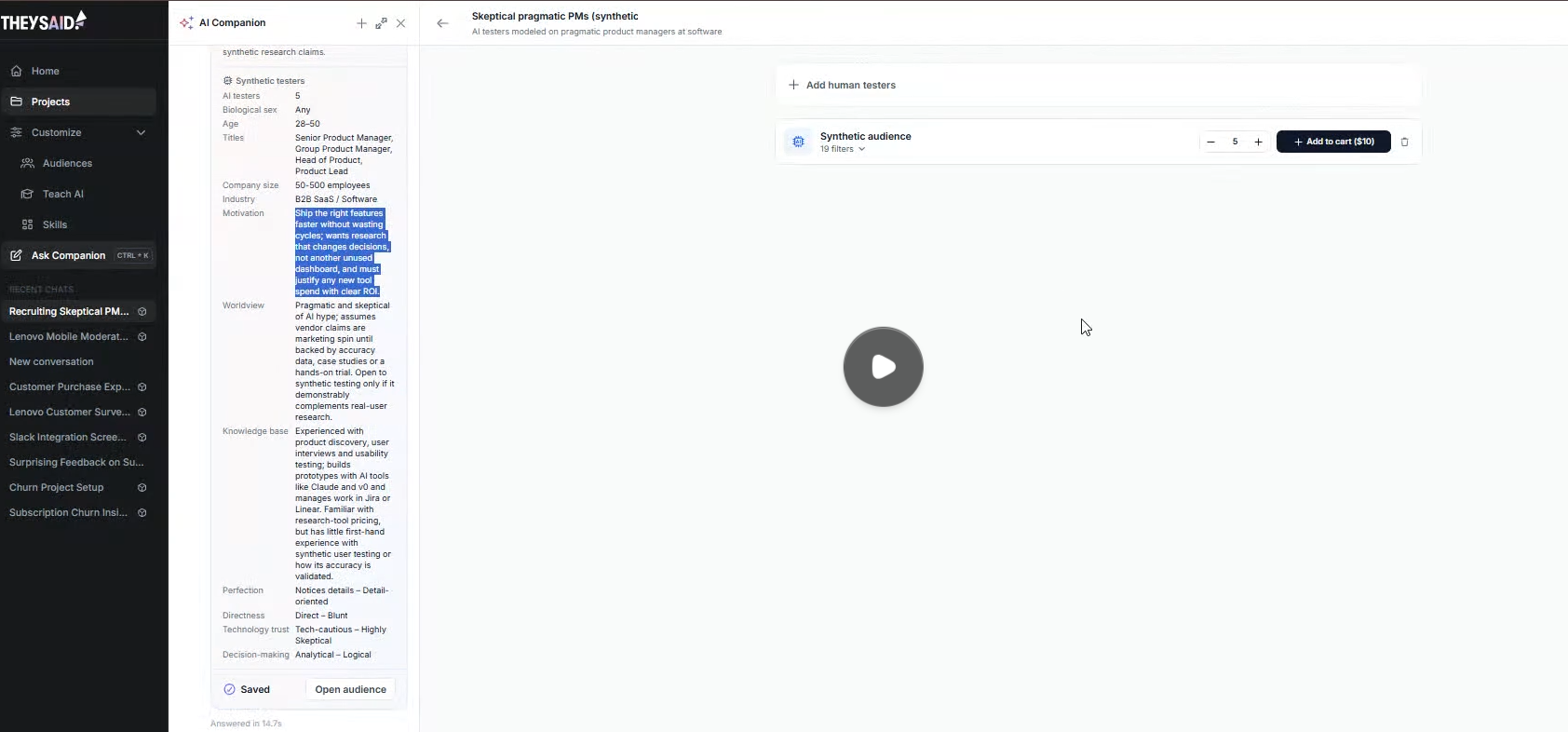
To reuse an audience on future tests, click Save as audience.
Step 14: Check out and track recruiting
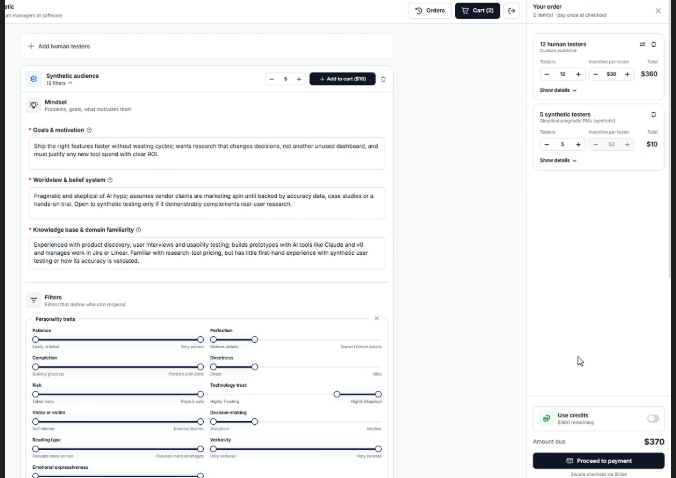
Click Add to cart on each audience. Your cart lists every audience with its size, incentive, and total. Turn on Use credits if you have them, then click Proceed to payment to check out securely through Stripe.
Once payment goes through, you'll see Payment complete, recruiting started.
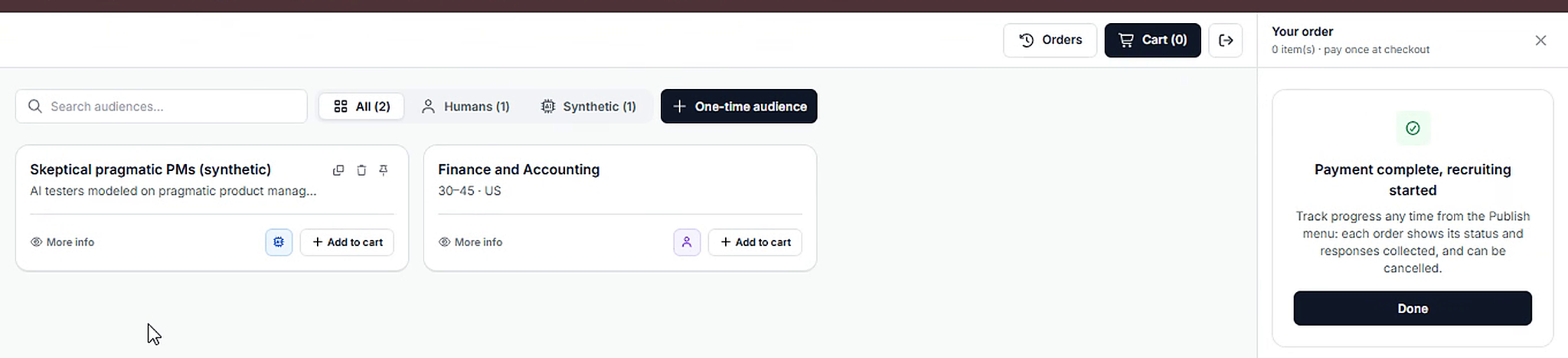
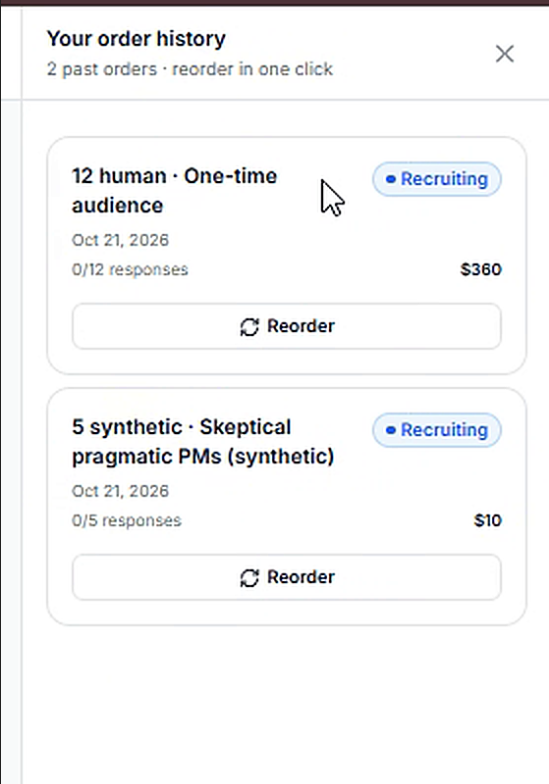
Track progress anytime from the Publish menu. Each order shows its status and how many responses are in, and you can cancel it there. Click Orders on the Recruit testers page to see your order history and reorder in one click.
Part 4: Customize your AI with Skills
Skills are reusable instructions that control how TheySaid's AI works. Set them up once, and every project uses them automatically.
Step 15: Open the Skills page
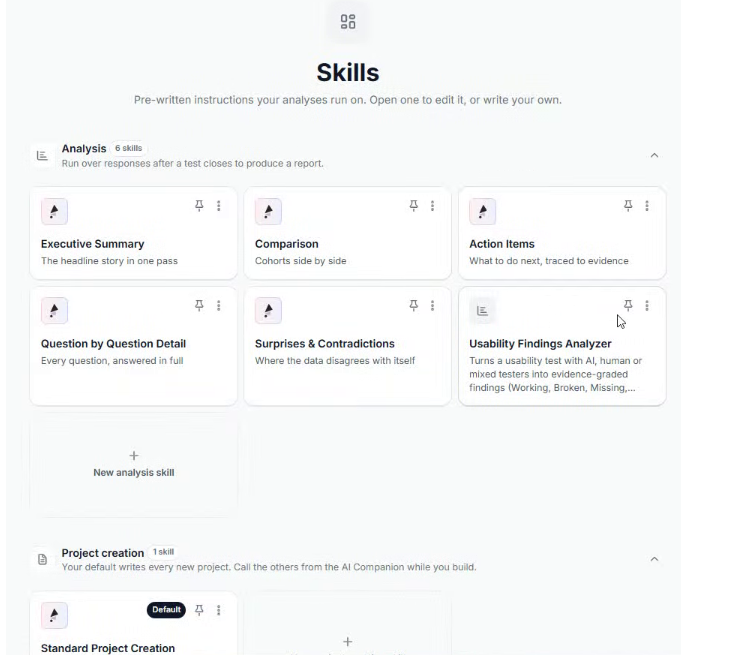
Click Skills in the left sidebar. You'll see three types of skills:
- Analysis: These run over your responses after a test closes and produce a report. TheySaid includes ready-made ones like Executive Summary, Comparison, Action Items, Question by Question Detail, and Surprises & Contradictions.
- Project creation: This controls how new projects get written. Standard Project Creation is the default, and you can call other ones from the AI Companion while you build.
- Moderation: This sets the AI moderator's follow-up style and tone, and how actively it references or validates what a participant just said.
Pin the skills you use most so they're always at the top.
Step 16: Write a skill with the AI Companion
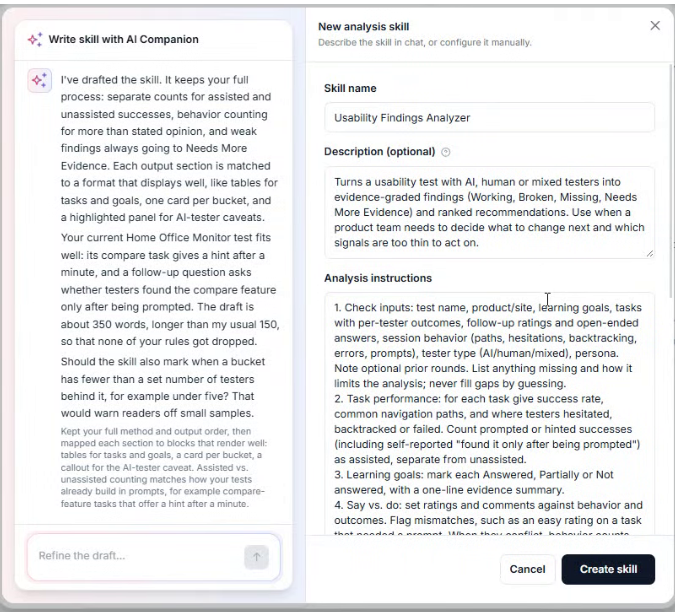
Click + New analysis skill. You don't have to write it yourself. Describe what you want in the Write skill with AI Companion chat on the left, or start from a suggestion like "Analyze dashboard usability sessions," "Summarize task friction with themes," or "Score sessions against a UX rubric."
The AI Companion reads your project for context, then fills in the Skill name, Description, and Analysis instructions for you. Review the draft, refine it in the chat if needed, and click Create skill.
In this example, the AI Companion built a Usability Findings Analyzer tailored to the monitor test. It sorts every finding into Working, Broken, Missing, or Needs More Evidence, and it ranks recommendations by impact.
Step 17: Add the analysis to your project
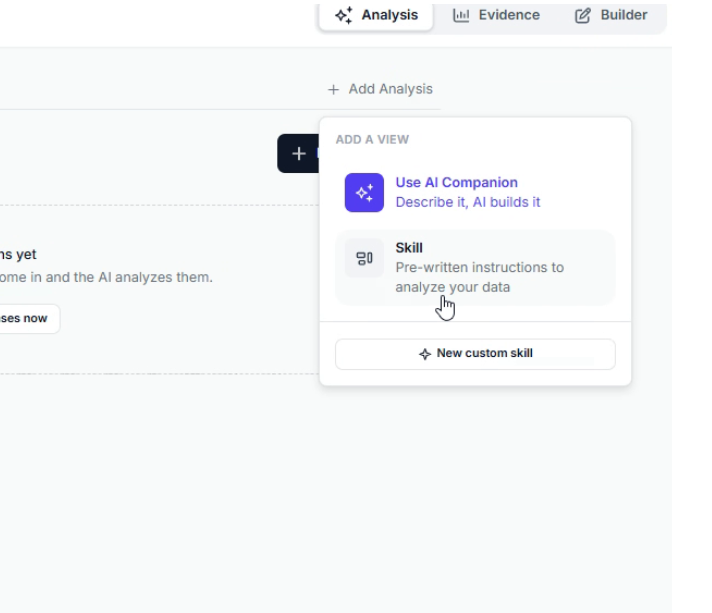
Open your project, click the Analysis tab, then + Add Analysis. You have three options:
- Use AI Companion: Describe what you want, and AI builds it.
- Skill: Pick any skill from your library, including the one you just created.
- New custom skill: Create a new one on the spot.
As responses come in, they show up in the Evidence tab, and your analysis runs automatically. To see what the results look like and how to act on them, read How to Analyze User Testing Results in TheySaid.
Pro tip: You can open the AI Companion from anywhere in TheySaid by clicking Ask Companion in the sidebar or pressing Ctrl + K.
Part 5: Review the results
Every project has three tabs at the top: Analysis, Evidence, and Builder. As sessions come in, they show up in the Evidence tab with each tester's quality rating, completion percentage, and answers. Tip: switch the quality filter to All to see sessions that are still in progress.
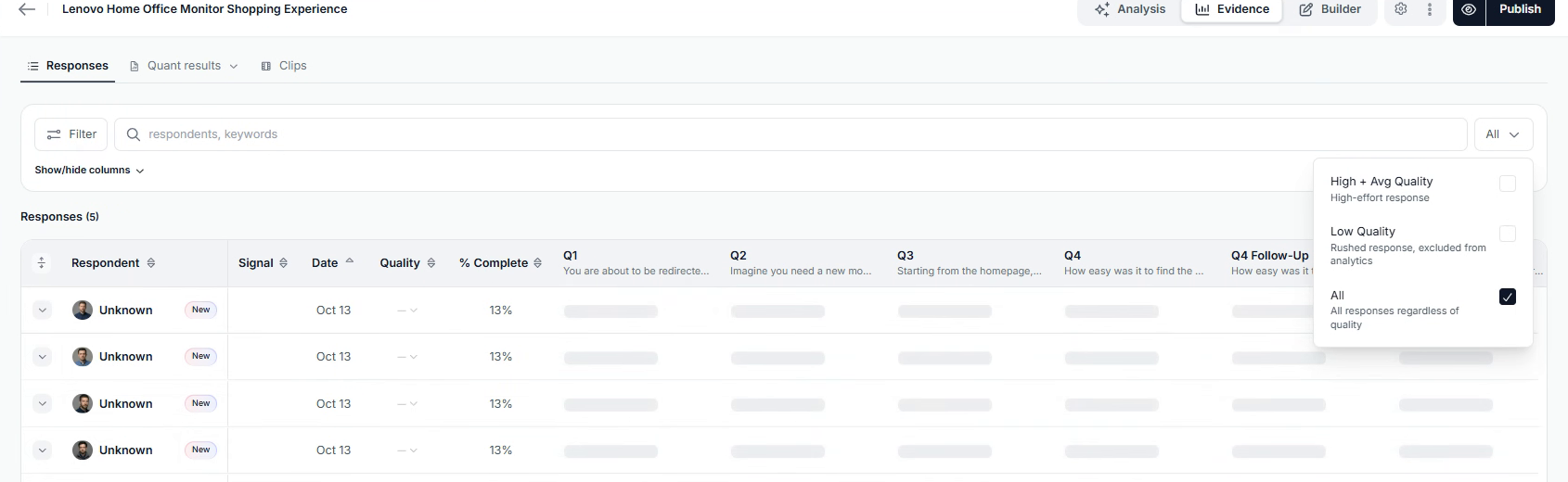
From here, you can watch session replays, dig into quantitative results, and run AI analysis that turns every session into ranked findings. We cover all of it in our companion guide, How to Analyze User Testing Results in TheySaid.
Optional: Record your own AI moderator voice
By default, TheySaid's AI moderator uses a built-in voice. You can swap it for a clone of your own voice in under a minute.
- Click your name at the bottom of the left sidebar and select Moderator Voice.
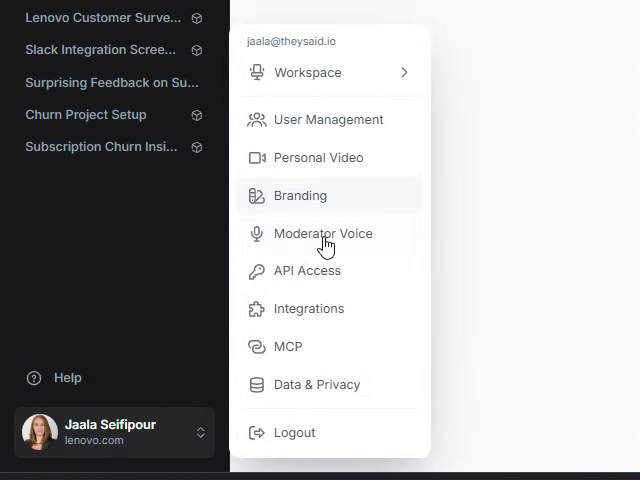
Find Moderator Voice in your account menu
- Click + Add voice, then click the title to give it a name.
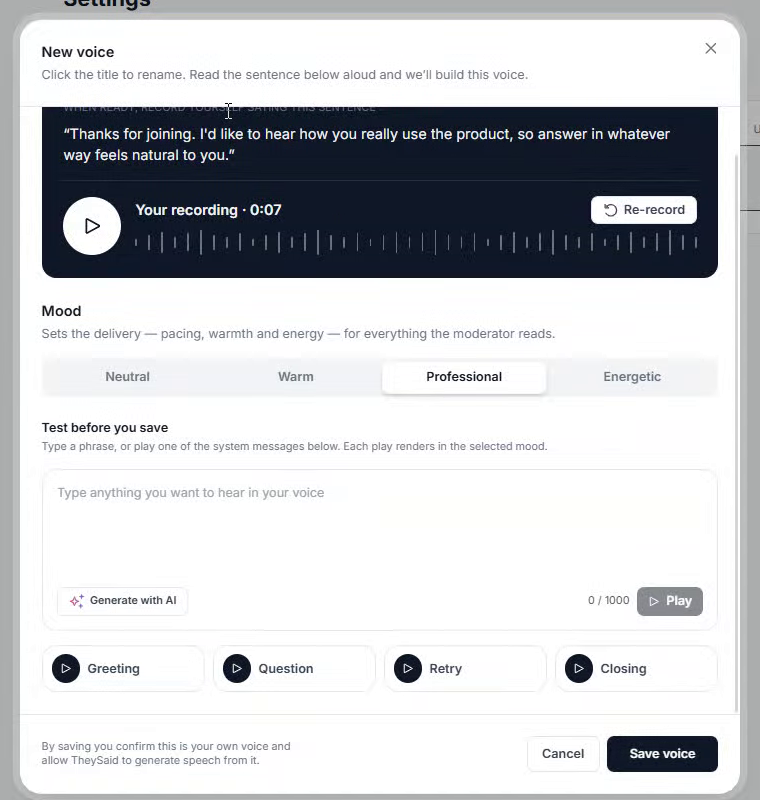
- Click Start recording and read the sentence on screen out loud. Find a quiet spot first.
- Choose a Mood: Neutral, Warm, Professional, or Energetic. This sets the pacing, warmth, and energy for everything the moderator says.
- Under Test before you save, type a phrase or play one of the sample messages (Greeting, Question, Retry, or Closing) to hear how it sounds.
- Click Save voice.
- When the voice is ready, click Yes, make it default to use it across your projects.
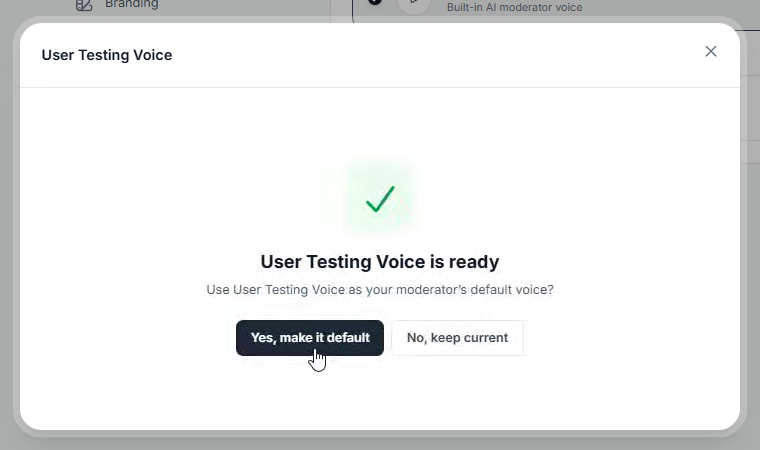
Make your new voice the default for every test
Bonus: Launch a test straight from Claude Design
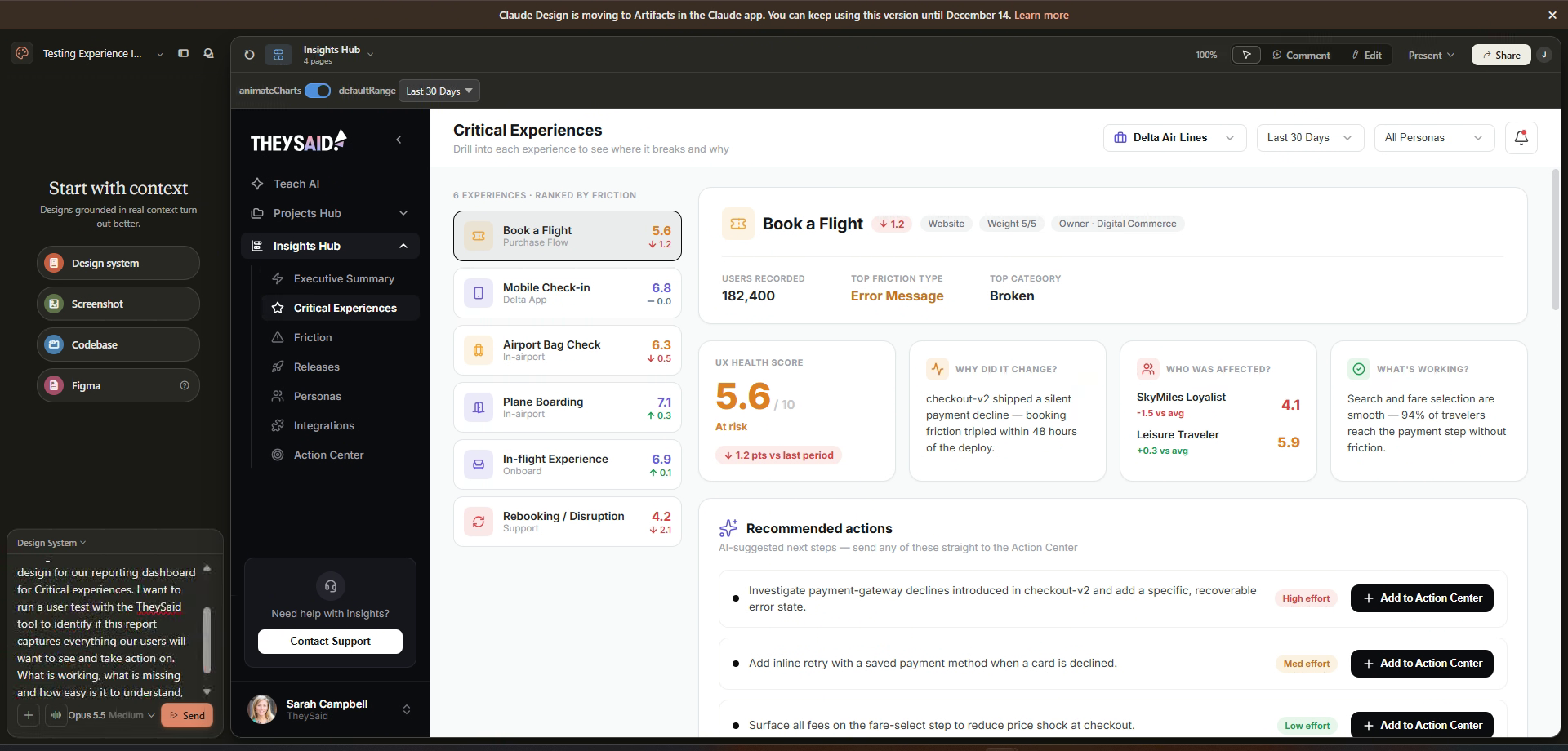
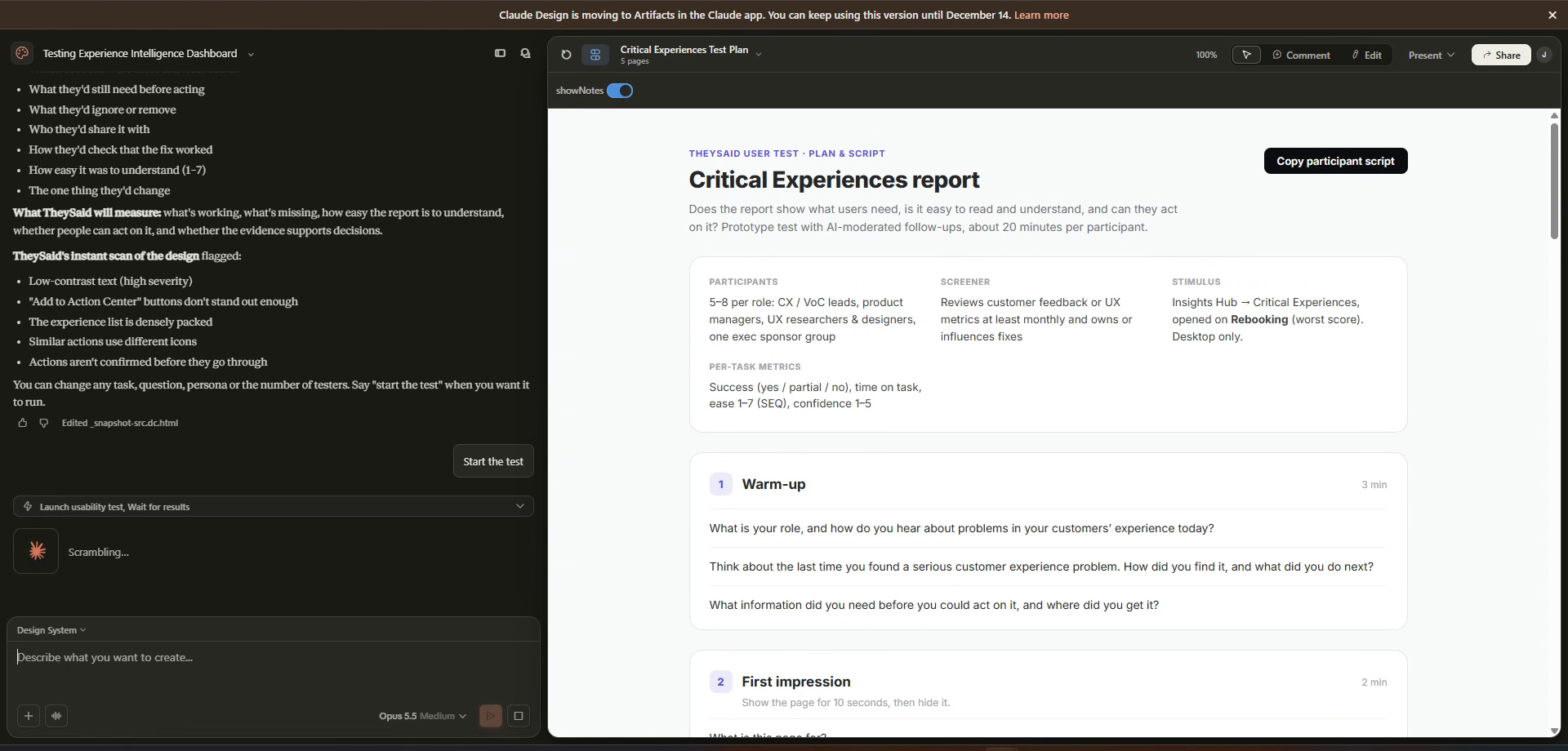
If your team designs in Claude Design, you can plan and launch a TheySaid test on a prototype without leaving your design. Here's how it works with a prototype of a reporting dashboard.
- Ask Claude to plan the test. In the chat, describe what you want to learn. For example: "I want to run a user test with TheySaid to see if this report captures everything our users want to see and act on. What's working, what's missing, and how easy is it to understand?"
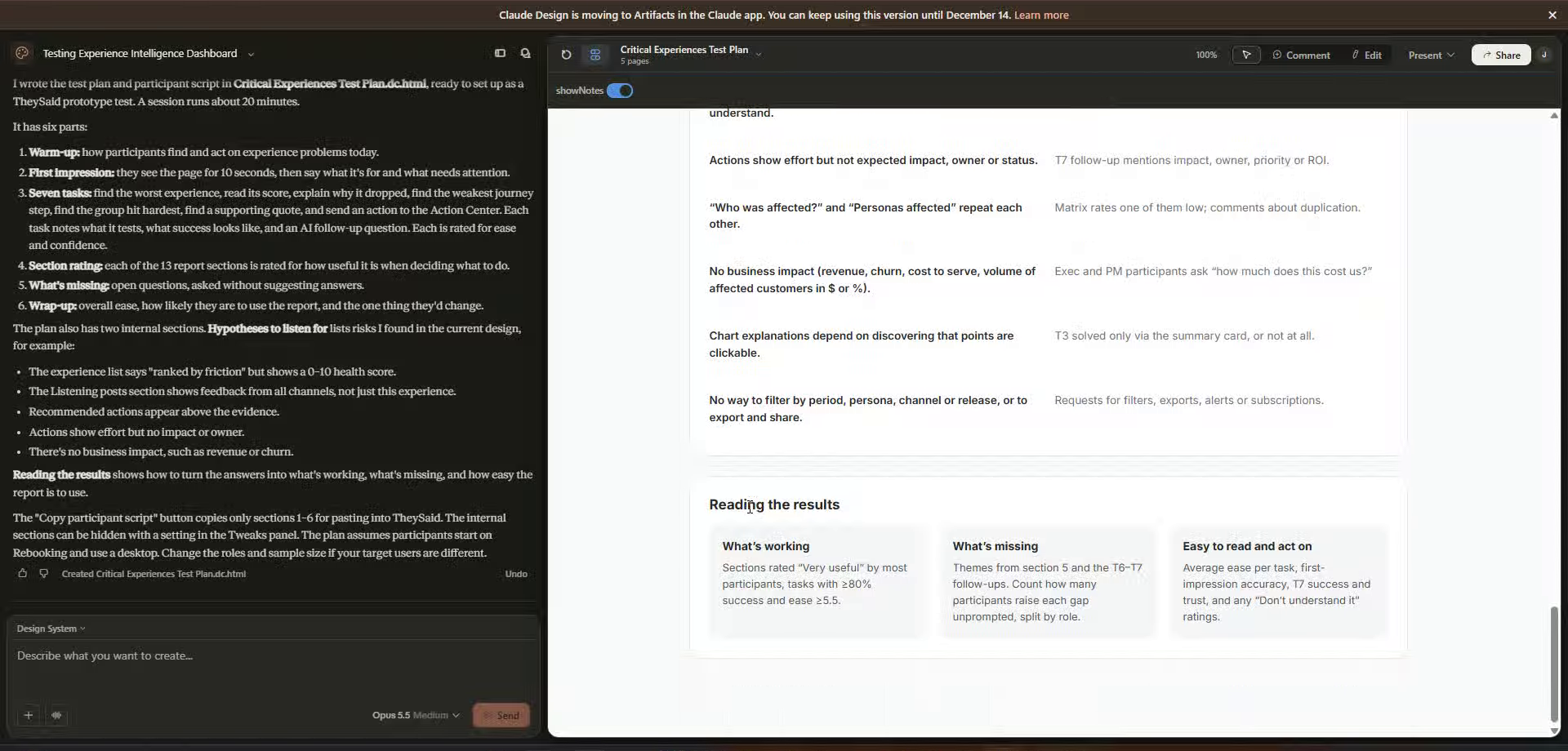
- Review the plan. Claude writes a full test plan and participant script: who to recruit, a screener, metrics for each task, and sections for the warm-up, first impressions, tasks with AI follow-ups, and wrap-up.
- Ask Claude to launch it. Type "Can we launch this test plan in TheySaid?" Claude takes a snapshot of your design and sets up the full test in TheySaid, including AI testers (six personas here, like a "skeptical NPS veteran" and a "metrics-obsessed product lead"), tasks, and questions. Nothing runs until you say so.
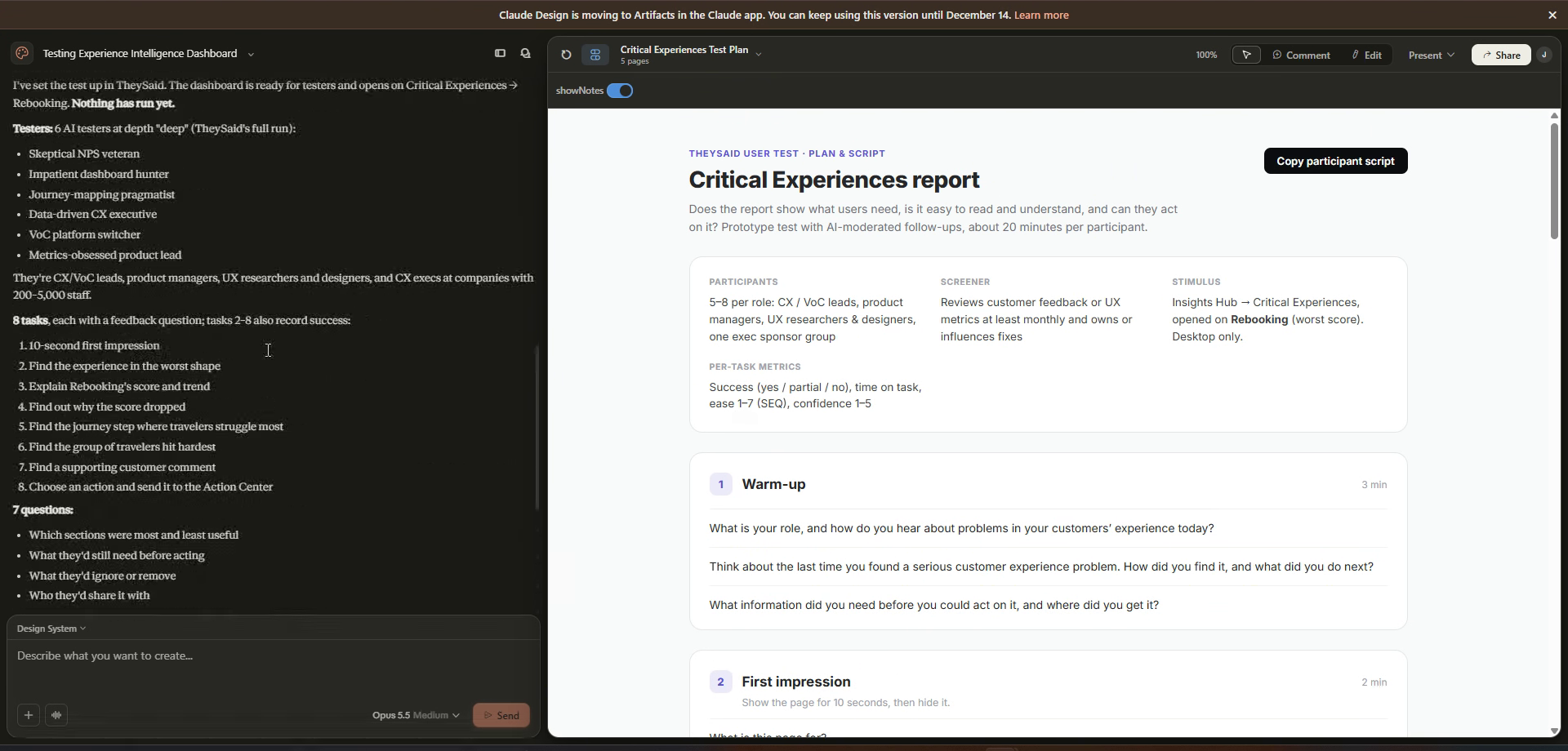
- Start the test. Click Start the test. Before you do, you can still change any task, question, persona, or the number of testers.
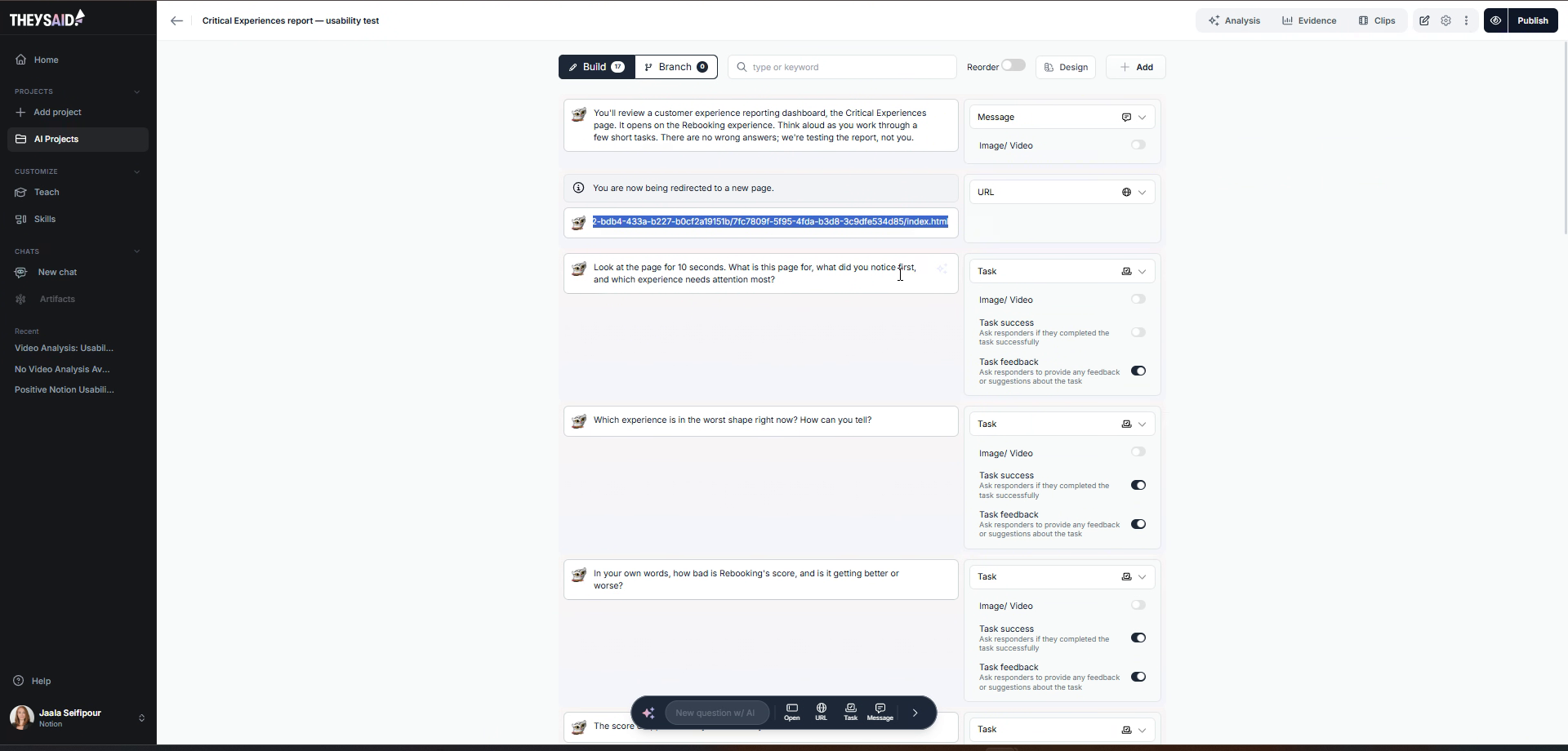
- Check it in TheySaid. The project shows up in your TheySaid account with every question in the Builder, ready to edit. Open the Evidence tab to watch the AI testers work through it in real time.
Start testing in minutes
That’s the whole setup: describe your test, let AI write it, polish it in the Builder, and publish. In under two minutes, you’ll have a live, AI-moderated test running with real users, synthetic audiences, or both.
And this is only the start of what’s new in TheySaid 4.0. Write your own Skills with the AI Companion, launch tests right where you build in tools like Claude Design, and turn every session into clear, evidence-backed next steps, plus so much more.
Ready to see how users will react? Get started for free and run your first test today.
Read How to Analyze User Testing Results in TheySaid to turn every session into clear findings and next steps.
FAQs
How long does it take to set up a user test in TheySaid?
Under two minutes. You describe what you want to learn in plain English, and TheySaid writes the learning goals, tasks, and follow-up questions for you. All that’s left is to review it in the Builder and publish.
Do I need to write my own test questions?
No. When you choose Generate with AI, TheySaid writes the full test for you, picking the right question type for each step: tasks, rating scales, multiple-choice questions, and open-ended follow-ups. You can still edit, reorder, or rewrite any question with Improve, or choose Start from scratch if you’d rather build it yourself.
What are synthetic audiences?
They’re AI participants that take your test the way real users would. They follow your tasks, think out loud, and answer follow-up questions. You choose how many to run, their demographics, their background, and how they behave, from patience and attention to detail to trust in technology. They’re a fast way to catch problems before you test with real people.
Can I test with real users and synthetic audiences at the same time?
Yes. Once you publish, you can share your test by link, email, website popup, QR code, or your own panel. You can also recruit real participants and synthetic audiences directly through TheySaid, all in the same study.
What languages does TheySaid support?
More than 70. Pick your project language when you create a test, and participants can take it in their own language.
Can participants take the test on their phone?
Yes. You can set your test to run on computers, phones, or both.
What are Skills in TheySaid?
Skills are reusable instructions that control how TheySaid’s AI works. Analysis skills turn your responses into reports, project creation skills shape how new tests get written, and moderation skills set the AI moderator’s follow-up style and tone. You can use the ready-made skills or write your own with the AI Companion.
Can I use my own voice for the AI moderator?
Yes. Go to Moderator Voice, record a short sample of yourself reading one sentence, pick a mood (Neutral, Warm, Professional, or Energetic), and save it. TheySaid builds the voice in under a minute, and you can make it the default for all your tests.
Can I launch a TheySaid test from my design tool?
Yes. With TheySaid 4.0, you can plan and launch a test right where you build. In Claude Design, for example, you can ask Claude to write a test plan for your prototype and launch it in TheySaid without leaving your design.